Home
» Tips
»
Simple Onboarding Training Presentation Template for New Hires: 12-Slide Practical Blueprint
Simple Onboarding Training Presentation Template for New Hires: 12-Slide Practical Blueprint
A new-hire onboarding presentation works best when it answers practical questions in the order employees actually encounter them: What is this company? Who do I work with? What am I expected to do? Which systems do I need? What rules matter immediately? Where do I go when something is unclear?
The presentation should not try to replace every policy, handbook, compliance course, benefits document, or role-specific training module. Its job is to orient the employee, make the first week navigable, and point to the authoritative resources they will use after the session.
As of September 11, 2026, Microsoft’s current PowerPoint guidance still supports reusable .potx templates built with Slide Master and slide layouts. Placeholders can be created for text, pictures, charts, video, and other content so HR or managers can update the same structure without restyling every slide. Microsoft also notes that creating a PowerPoint template requires the desktop version; PowerPoint for the web cannot create a .potx template. See Microsoft Support: Create and save a PowerPoint template.
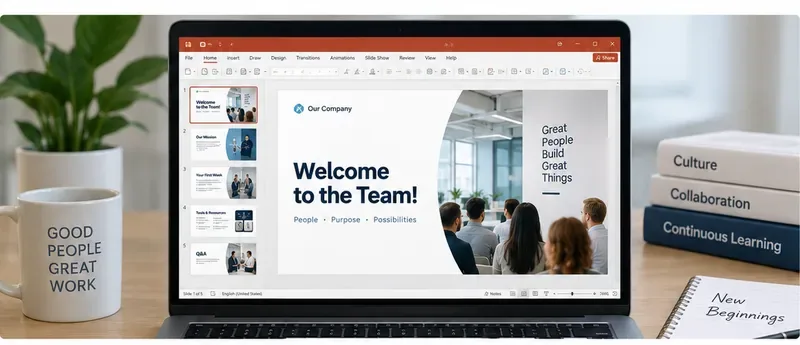
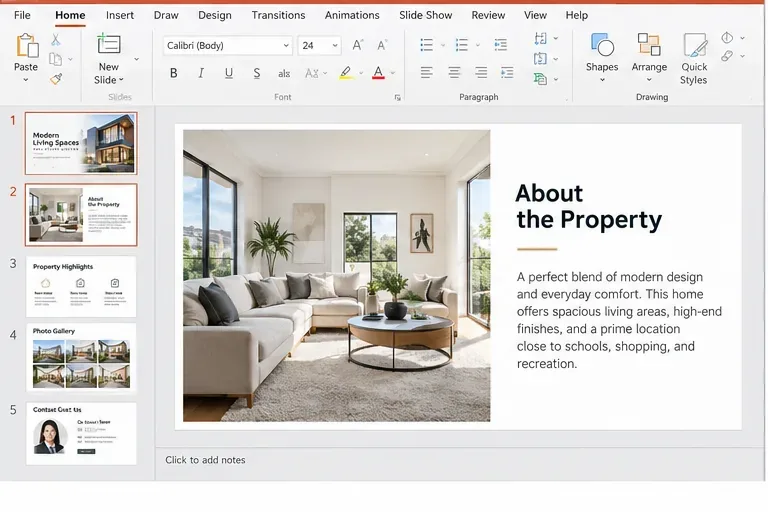
A simple onboarding deck can use one reusable layout system for the welcome, company context, first-week plan, tools, and next-step information.
What should a simple onboarding presentation accomplish?
A useful deck gives a new hire enough context to act without turning the first day into a memory test. Group the content by purpose rather than by department ownership. Employees do not need to know whether a slide came from HR, IT, Legal, Security, or Operations; they need to know what action to take and where the official source lives.
Purpose
What the presentation should answer
What should usually live elsewhere
Orientation
Who we are, what we do, how the team fits together
Full company history, investor materials, detailed org documentation
Role clarity
What success looks like in the first weeks
Full job procedures, technical manuals, performance-management records
Long-term development plan and detailed project documentation
A practical 12-slide onboarding training template
Slide 1: Welcome and session purpose
Keep the opening slide simple: employee or cohort name, team, start date, and one sentence explaining what the session will cover. Avoid turning the first slide into a collage of slogans.
Include: “Welcome to the team,” presenter names, session length, and a short agenda. If the deck is reused across departments, use placeholders such as [Team Name] and [Manager Name] rather than hard-coding one department into the master.
Slide 2: Company in one page
Explain the business in plain language: who the organization serves, what it provides, and how it creates value. A new hire does not need a 20-year corporate timeline before they understand the product or service.
Include: mission or purpose, primary customers or stakeholders, core products/services, and one simple business model description if relevant.
Slide 3: Values translated into behavior
Values become useful when the slide connects them to everyday behavior. “Ownership” can mean escalating blockers early and closing loops. “Customer focus” can mean checking the user impact before prioritizing a change.
Include: two to four values, each paired with one observable behavior. Link to the official culture or conduct material if the organization maintains it elsewhere.
Slide 4: Team map and key contacts
Show the employee where decisions, questions, and support go. A small team map is often more useful than a full company organization chart.
Include: manager, onboarding buddy or mentor, HR contact, IT/help desk, payroll/benefits contact, and any role-critical partner teams. Avoid publishing personal phone numbers unless the organization intentionally uses them for work.
Slide 5: Role expectations and first 30 days
Separate immediate learning from performance expectations. The first week may focus on access, product knowledge, and observation; later weeks may add independent work and measurable outputs.
Confirm expectations, identify blockers, agree on next development goals
Replace generic milestones with the actual role plan. A sales hire, warehouse associate, software engineer, and nurse will not have the same first-30-day sequence.
Slide 6: How work happens here
New hires need communication rules more than a list of every collaboration feature. Explain where different kinds of work belong.
Include: which channel is used for urgent issues, where project decisions are documented, expected meeting etiquette, typical response expectations, and how to raise a blocker. If remote or hybrid work is common, include the organization’s current working-location norms.
Slide 7: Tools, access, and support
List only the systems the new hire needs early. Group them by purpose: communication, identity/access, project work, HR/payroll, learning, and support.
Do not place passwords, shared secrets, API keys, or recovery codes in the presentation. The slide should tell the employee how access is provisioned and where to request help.
Use a small table with Tool, Purpose, How to access, and Support owner. That is more maintainable than a wall of logos.
Slide 8: Cybersecurity basics for day one
Security awareness belongs early because a new hire begins receiving email, chat messages, access requests, and login prompts immediately. CISA continues to recommend foundational practices such as phishing training, strong passwords, multifactor authentication, and keeping software updated. See CISA: Four Cybersecurity Essentials.
Include: how to report suspicious messages, required MFA, approved password-management practices, software-update expectations, and where security incidents should be reported. Use organization-specific security instructions rather than generic examples that conflict with your IT policy.
Slide 9: Conduct, reporting, and respectful-workplace resources
A short onboarding deck can introduce where the anti-harassment, anti-discrimination, code-of-conduct, and complaint procedures are located, but it should not pretend that a single summary slide replaces required training.
The U.S. Equal Employment Opportunity Commission recommends harassment prevention programs with clear policies, accessible complaint procedures, and regular, interactive training tailored to the specific workplace and workforce. See EEOC: Promising Practices for Preventing Harassment.
Include: where the official policy lives, available reporting channels, contact information for the responsible office or individuals, and any required follow-up training. State and local requirements can differ, so have HR/legal review recurring compliance slides.
Slide 10: Safety and emergency basics
For an office role, this may cover emergency exits, incident reporting, workstation concerns, and site-specific procedures. For industrial, laboratory, healthcare, field, warehouse, transportation, or other higher-risk roles, the deck should only be an orientation layer before the required hazard-specific instruction.
OSHA states that employers must inform employees about workplace hazards and provide training on applicable standards in language and vocabulary workers can understand. See OSHA employer safety-training responsibilities.
Include: who to contact, how to report an injury or hazard, emergency assembly or evacuation information where applicable, and a clear pointer to the actual safety training required for the role.
Slide 11: HR administration and important deadlines
Keep this slide action-oriented: benefits enrollment, payroll setup, required employment documentation, timekeeping, and where employees can verify deadlines.
For U.S. employers, Form I-9 is a separate legal process with specific timing. USCIS instructions state that the employee completes Section 1 no later than the first day of employment, and the employer generally completes Section 2 within three business days after the employee’s first day of employment. See USCIS Form I-9 instructions.
Include: a link or location for the current process, not screenshots of identity documents or completed forms. Keep sensitive personal data out of the training deck.
Slide 12: First-week checklist, Q&A, and next steps
End with a page employees can act on immediately. A clear checklist is more useful than a generic “Questions?” slide.
Confirm all required accounts and access.
Complete assigned compliance and security training.
Meet manager, buddy/mentor, and core partner teams.
Review role expectations and first-week deliverables.
Know where the handbook, policies, and benefits resources live.
Know how to contact IT, HR, security, and safety support.
Schedule the first manager check-in or onboarding review.
Write down unresolved questions before the session ends.
What should be a slide, and what should be a link?
A simple rule helps keep onboarding presentations maintainable: put orientation and actions on the slide; put authoritative detail in the source system.
Put on the slide
Link to the source
Three key security actions
Security policy and required training
Where to report harassment or concerns
Full policy and complaint procedure
Emergency reporting contact
Site-specific emergency or safety procedure
Benefits enrollment deadline reminder
Current benefits portal and plan documents
First-week expectations
Role playbook, SOPs, technical documentation
This prevents the deck from becoming a stale duplicate of systems that already have owners and update processes.
How to turn the deck into a reusable PowerPoint template
Use View > Slide Master in desktop PowerPoint to create the recurring layouts. Microsoft documents placeholders as preformatted containers that can hold text, pictures, charts, tables, video, and other content while preserving consistency. See Microsoft Support: Add, edit, or remove a placeholder.
A practical onboarding template needs only a small layout library:
Title / welcome
Section divider
Title + short bullets
Two-column comparison
Timeline / first-week plan
People / contact cards
Checklist
Closing / Q&A
Save the reusable master as a PowerPoint Template (.potx). Keep changing information—employee names, office contacts, deadlines, benefits dates, product screenshots—out of the master unless someone owns the process for updating them.
Accessibility check before you reuse the template
Microsoft recommends using PowerPoint’s Accessibility Checker and adding alternative text to meaningful visuals, maintaining a logical reading order, using sufficient color contrast, and providing captions or subtitles for relevant media. See Microsoft’s PowerPoint accessibility guidance.
Before publishing the template, run Review > Check Accessibility. Then inspect the deck manually. Automated checks help, but they cannot determine whether a policy summary is accurate, whether a diagram is actually understandable, or whether the presenter is using terminology a new employee knows.
New-hire onboarding presentation checklist
The deck identifies the employee’s team, manager, and core support contacts.
Company context is concise enough to understand in a few minutes.
Role expectations distinguish first-day, first-week, and later milestones.
Tools are grouped by purpose and contain no credentials or secrets.
Security guidance matches the organization’s current IT policy.
Conduct and reporting slides point to the official policy and complaint process.
Safety content is appropriate to the actual workplace and role.
HR deadlines link to current authoritative systems or documents.
Compliance material has been reviewed for the employee’s jurisdiction and job type.
Every external or internal link still works.
Accessibility Checker has been run and key slides have been visually reviewed.
The final slide tells the employee exactly what to do next.
Bottom line
A simple onboarding training presentation is most effective as a navigation layer. It welcomes the new hire, establishes context, clarifies the first weeks, and points to the people and systems that contain the authoritative answers.
Build the structure once in PowerPoint, but do not freeze the content. Contacts change, policies are revised, security threats evolve, software access changes, and legal requirements vary by location and role. Treat the .potx file as a reusable framework and the information inside each new employee’s deck as content that must be checked before every onboarding cycle.