An equipment maintenance log is a structured record of what work was performed on a machine, when it happened, who did it, what was found, and what should happen next. For a workshop manager who is new to maintenance tracking, the most important goal is not to build a complicated spreadsheet. It is to create a record that another person can read later and understand the equipment's maintenance history without asking the original technician to reconstruct it from memory.
This article gives you a copy-ready Excel structure and explains the decisions behind it. It is designed for workshops managing tools and machines such as compressors, lifts, drill presses, welding equipment, generators, pumps, saws, diagnostic equipment, or other maintainable assets. The exact maintenance interval for any machine should come from the manufacturer, your operating conditions, inspection requirements, and your organization's maintenance program—not from a generic spreadsheet template.
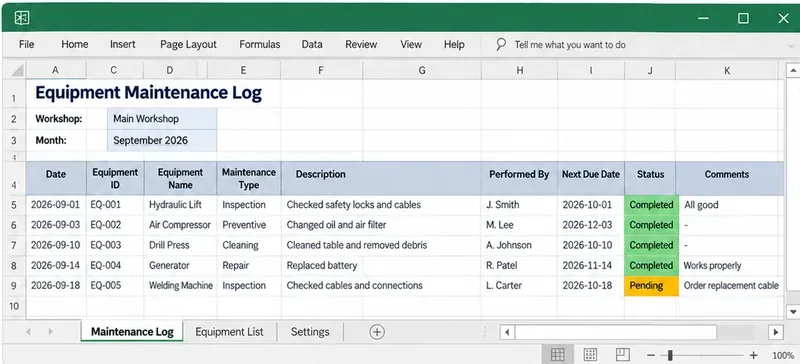
Illustrative Excel maintenance log with workshop details, service history, next-due dates, technicians, and status fields. The equipment names, dates, and maintenance actions are sample values only.
What you need to know before you open Excel
It helps to separate four terms that are often mixed together.
- Maintenance log: the historical record of work that actually happened.
- Preventive maintenance: planned maintenance performed before failure, such as inspection, lubrication, cleaning, adjustment, or scheduled replacement.
- Corrective maintenance: work performed after a defect, abnormal condition, or failure is found.
- Work order: an authorized task record that tells someone what work should be done. A work order may later produce one or more maintenance-log entries.
A maintenance log should not be treated as a substitute for a safety procedure. OSHA's lockout/tagout standard covers hazardous-energy control during servicing and maintenance when unexpected startup or release of stored energy could injure workers. OSHA's current Lockout/Tagout Fact Sheet explains that employers need an energy-control program and appropriate procedures for electrical, mechanical, hydraulic, pneumatic, chemical, thermal, and other energy sources.
Practical takeaway: use the Excel log to document maintenance activity and follow-up. Keep lockout/tagout procedures, permits, training requirements, and equipment-specific safe-work instructions in the safety system where they belong.
Prepare an equipment list before building the maintenance log
A beginner mistake is to start entering maintenance rows before the workshop has a stable way to identify equipment. Create an Equipment List sheet first. Give every maintainable asset a unique Equipment ID such as EQ-001.
| Field | What it means | Example |
|---|
| Equipment ID | Permanent internal identifier | EQ-001 |
| Equipment Name | Plain-language asset name | Hydraulic Lift |
| Manufacturer / Model | Helps locate manuals and parts | Use the actual nameplate values |
| Serial Number | Distinguishes identical units | Manufacturer serial number |
| Location | Where the asset is normally used | Bay 2 |
| Service Basis | What triggers maintenance | Calendar / Hours / Cycles / Condition |
| Interval | Approved maintenance interval | From manual or maintenance plan |
| Criticality | Business or safety impact if the asset fails | High / Medium / Low |
| Status | Whether the asset is active, out of service, or retired | Active |
Criticality is simply a ranking of how serious an equipment failure would be. A machine that stops the entire workshop or has a major safety consequence may be High criticality; a low-cost backup tool may be Low. Do not confuse criticality with maintenance frequency: a critical machine can still have a long approved interval if the manufacturer and your maintenance program support it.
Build the maintenance log with one row per completed activity
Create a second sheet called Maintenance Log. Each row should represent one maintenance event or one clearly defined piece of completed work.
| Recommended column | Why it matters |
|---|
| Date | When the maintenance was completed |
| Equipment ID | Connects the record to the Equipment List |
| Equipment Name | Makes the row readable when printed or filtered |
| Maintenance Type | Inspection, Preventive, Corrective, Calibration, Cleaning, Other |
| Description of Work | What was actually done—not just “serviced” |
| Finding / Condition | What the technician observed |
| Performed By | Technician, vendor, or responsible person |
| Meter Reading | Operating hours, cycles, mileage, or another usage measure if relevant |
| Parts / Materials | Important parts or consumables used |
| Cost | Optional maintenance cost for management reporting |
| Downtime Hours | How long the equipment was unavailable, if useful |
| Next Due Date | Next calendar-based service date when applicable |
| Next Due Meter | Next hour/cycle threshold when applicable |
| Status | Completed / Follow-up Required / Out of Service |
| Work Order Ref. | Optional link to the formal work request |
| Notes | Anything important that does not fit elsewhere |
Use descriptions that another manager can understand. “Changed compressor oil and air filter; drain valve inspected, no leak found” is much more useful than “PM done.”
Turn the log into an Excel Table
After you create the headers, select the range and use Home > Format as Table. Microsoft describes Excel Tables as a way to group and analyze related data, with built-in headers and filtering. The current Create and format tables documentation applies to Microsoft 365 and current supported desktop versions including Excel 2024.
For a workshop log, the practical benefits are simple: new rows inherit the table structure, filters stay attached to the headers, and structured formulas are easier to maintain than formulas copied through arbitrary ranges.
Freeze the header area if the log becomes long. Microsoft documents View > Freeze Panes for keeping rows or columns visible while scrolling. See Freeze panes to lock rows and columns.
Use dropdowns for fields that should stay consistent
Free text quickly creates duplicate categories such as Preventive, PM, Preventative, and preventive maintenance. Excel's Data Validation feature can restrict a cell to a list. Microsoft recommends storing the valid choices in a source list and notes that a source list in an Excel Table can expand as items are added or removed. See Create a drop-down list.
Useful dropdown fields include:
- Maintenance Type: Inspection, Preventive, Corrective, Calibration, Cleaning, Other
- Maintenance Status: Completed, Follow-up Required, Out of Service
- Equipment Status: Active, Out of Service, Retired
- Criticality: High, Medium, Low
- Service Basis: Calendar, Hours, Cycles, Condition
Do not make every field a dropdown. Description of Work, Findings, and Notes need enough freedom to capture real technical information.
Handle calendar-based and usage-based maintenance separately
Not every machine should have a “Next Due Date.” Some equipment is maintained every number of operating hours or cycles. Others use a condition trigger, such as an inspection result or measured wear.
For a calendar-based asset, you might calculate a next due date if the approved interval is stored in days:
=[@[Date]]+[@[Interval Days]]
For an hour-based asset, the more relevant calculation is:
=[@[Meter Reading]]+[@[Interval Hours]]
Do not convert an hour-based manufacturer's interval into an arbitrary number of calendar days merely because dates are easier to display. Store the trigger that actually applies to the asset.
Add a simple due-status field without hiding the underlying dates
If the row has a Next Due Date, a status formula can make review easier:
=IF([@[Next Due Date]]="","",IF([@[Next Due Date]]<TODAY(),"OVERDUE",IF([@[Next Due Date]]<=TODAY()+14,"DUE SOON","OK")))
This example uses a 14-day “Due Soon” window for illustration. Your review window should reflect how long it takes your workshop to schedule technicians, order parts, or take a machine out of production.
Microsoft's current Excel documentation supports IF-based conditional formulas and formula-driven Conditional Formatting. See Create conditional formulas and Use conditional formatting to highlight information in Excel.
A good visual rule is restrained: highlight OVERDUE and DUE SOON, but keep the actual date visible. Color should help attention, not replace the data.
Use the log during real workshop work
A practical routine for a new manager is:
- Confirm the Equipment ID before work begins.
- Use the workshop's normal work-order or authorization process if one exists.
- Follow the required safety procedure before servicing the equipment.
- After the work is completed, enter the maintenance row while details are still fresh.
- Record findings that may require additional work.
- Update the equipment's next due date or meter threshold only from the approved maintenance rule.
- Flag equipment Out of Service when the maintenance result requires it; do not use a spreadsheet status as a substitute for physical or procedural controls.
The log becomes more valuable when technicians record findings, not only completed tasks. A loose cable found repeatedly, a bearing that runs hot, or an oil leak that returns after repair may reveal a pattern that is invisible in a simple “Completed” history.
Review the log weekly instead of waiting for a breakdown
Filter for:
- Overdue or Due Soon preventive maintenance
- Follow-up Required items
- Equipment marked Out of Service
- Repeated corrective repairs on the same Equipment ID
- High-criticality equipment with unresolved findings
- Missing Next Due Date or Next Due Meter where the maintenance plan requires one
- Large downtime or repair-cost events worth management review
Do not interpret a log with fewer maintenance entries as automatically “better.” A quiet log can mean reliable equipment, but it can also mean missing records. Compare the log with work orders, technician activity, vendor invoices, meter readings, and the maintenance schedule.
Common mistakes to avoid
Hard-coding generic maintenance intervals
A template does not know whether a compressor needs service every 500 hours, annually, after a specific inspection result, or under a different manufacturer schedule. Enter intervals from approved equipment documentation and your maintenance program.
Using the equipment name as the unique key
A workshop can own three identical compressors. “Air Compressor” is not unique; EQ-014 is.
Overwriting history
Do not edit the old row to show the newest service. Add a new maintenance row. The value of the log comes from history.
Mixing planned work and completed work in the same status field
A maintenance schedule answers what should happen. A maintenance log answers what did happen. You can keep both in one workbook, but separate them into sheets or clearly different tables.
Treating “Completed” as proof that the machine is safe to operate
The log is a record. Return-to-service requirements should follow your equipment-specific maintenance procedure, inspection criteria, and workplace safety program.
Turning Excel into an improvised CMMS
A CMMS—computerized maintenance management system—is software designed to manage assets, work orders, maintenance schedules, parts, labor, and maintenance history. Excel remains a good fit when one or a few managers control a modest equipment list and the main need is structured tracking. Consider a CMMS when multiple technicians need concurrent work orders, approvals, mobile updates, parts inventory, automated meter-based triggers, audit trails, or multi-site reporting.
Beginner-ready workbook structure
| Sheet | Purpose |
|---|
| Equipment List | One row per asset with stable IDs, location, service basis, interval, and criticality |
| Maintenance Log | One row per completed maintenance activity |
| Maintenance Schedule | Upcoming calendar, meter, cycle, or condition-triggered work |
| Lists | Dropdown values for type, status, criticality, and service basis |
| Summary | Optional counts for overdue work, downtime, costs, and recurring repairs |
If you are just starting, build the Equipment List and Maintenance Log first. Add Schedule and Summary only after the team is entering accurate data consistently. A simple workbook with reliable records is more useful than a sophisticated dashboard fed by incomplete entries.
Final setup checklist
- Every maintainable asset has a unique Equipment ID.
- Manufacturer, model, serial number, and location are recorded where useful.
- Maintenance intervals come from approved sources, not from the template.
- Calendar-based and meter-based triggers are stored separately.
- Each completed maintenance activity gets a new log row.
- Maintenance Type and Status use controlled dropdown values.
- Findings and follow-up actions are recorded clearly.
- Overdue work is highlighted without hiding the real due date.
- Safety procedures such as lockout/tagout remain outside the spreadsheet and are followed as required.
- History is retained instead of overwritten.
- The workbook is backed up and access is controlled appropriately.
Bottom line
An Excel equipment maintenance log works well when a workshop needs a clear history, a manageable asset list, and a straightforward way to see what was done and what needs attention next. Start with stable equipment IDs and accurate maintenance records. Use Excel Tables, dropdowns, and conditional formatting to make entry and review easier, but keep maintenance intervals tied to the actual machine requirements.
The template should support the maintenance process, not replace it. If the workshop grows to the point where scheduling, mobile work orders, parts, approvals, and audit trails become the main challenge, that is the signal to move beyond Excel to a CMMS. Until then, a disciplined workbook can give a new workshop manager a useful, understandable maintenance record without unnecessary complexity.