A small team often needs more structure than a handwritten payroll checklist but less complexity than a full payroll analytics system. A simple bi-weekly payroll tracker in Excel can fill that gap when it is used as a controlled review and reconciliation workbook rather than as a substitute for compliant payroll processing.
This guide uses a clearly fictional example throughout: Maple Leaf Consulting, a five-person U.S. consulting studio with three hourly employees and two salaried employees. The example pay period runs from April 14 through April 27, 2026, with an illustrative pay date of April 30. The names, rates, hours, deductions, and totals shown here are examples only. They are not test results, customer outcomes, or recommended wage or tax amounts.
The workbook design below is intentionally simple. It helps a small team collect inputs, check hours, reconcile payroll figures, and keep a consistent pay-period history. It should not be treated as a tax engine. Federal, state, and local rules can affect overtime, deductions, withholding, pay statements, and record retention. For U.S. employers, the IRS Publication 15 (2026), Employer's Tax Guide and U.S. Department of Labor guidance are better sources for compliance questions than a spreadsheet formula.
What should a bi-weekly payroll tracker actually track?
The most useful template is not the one with the most columns. It is the one that makes the review process obvious. For Maple Leaf Consulting, the workbook needs to answer six practical questions every two weeks: Who is being paid? What period does the payment cover? Were the hours reviewed correctly? What earnings and deductions came from the approved payroll calculation? Does the net pay reconcile? Is anything missing before the payroll is finalized?
| Worksheet | Purpose | Typical fields |
|---|
| Employees | Stable employee reference data | Employee ID, name, role, pay type, hourly rate or salary reference |
| Time Log | Pay-period hours and leave inputs | Workweek, regular hours, overtime hours, sick hours, vacation hours |
| Payroll | Approved pay-period amounts | Gross pay, additions, deductions, net pay, status |
| Summary | Quick review and reconciliation | Headcount, regular hours, overtime hours, gross pay, deductions, net pay |
The U.S. Department of Labor does not require one specific recordkeeping format under the Fair Labor Standards Act, but covered employers must maintain accurate identifying, hours-worked, and wage records. Its FLSA recordkeeping fact sheet lists items such as hours worked each day and workweek, the basis of pay, regular rate, overtime earnings, additions or deductions, total wages, payment date, and the pay period covered.
Step 1: set up the payroll sheet around one employee and one pay period
Start with a sheet named Payroll. At the top, reserve cells for Company, Pay Period Start, Pay Period End, and Pay Date. Under that, create one row per employee for the current pay period. Use a stable Employee ID so the workbook does not depend on spelling a name the same way every time.
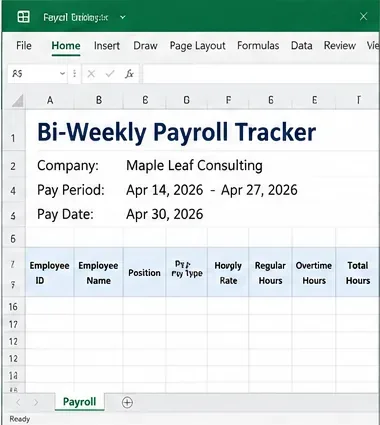
Illustrative payroll-sheet layout for Maple Leaf Consulting, showing pay-period details above a compact employee table.
For the fictional team, employee E001 might be an hourly employee, while E003 is salaried. Avoid putting Social Security numbers, bank account numbers, or other sensitive identifiers into a general-purpose shared workbook unless you have a documented need and appropriate access controls. The payroll tracker can usually work with an internal employee ID instead.
Once the headers are stable, convert the data range to an Excel Table. Microsoft documents Format as Table as a way to organize related data and add built-in filtering. Tables also make formulas easier to extend when new rows are added.
Step 2: use dropdown lists for fields that should not vary
Free-text categories create reporting problems quickly. One person types “Hourly,” another types “hourly,” and a third enters “Part time hourly.” The workbook now treats them as different values.
Create a small Lists sheet and define controlled values for fields such as Pay Type and Status. Then use Data > Data Validation with the List option. Microsoft states that data validation can restrict entries and create dropdown lists, which is exactly what a lightweight payroll template needs for repeatable categories. See Microsoft Support: Apply data validation to cells.
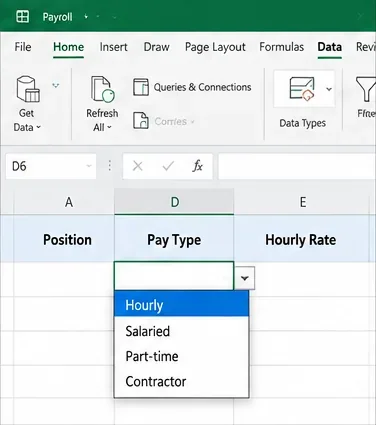
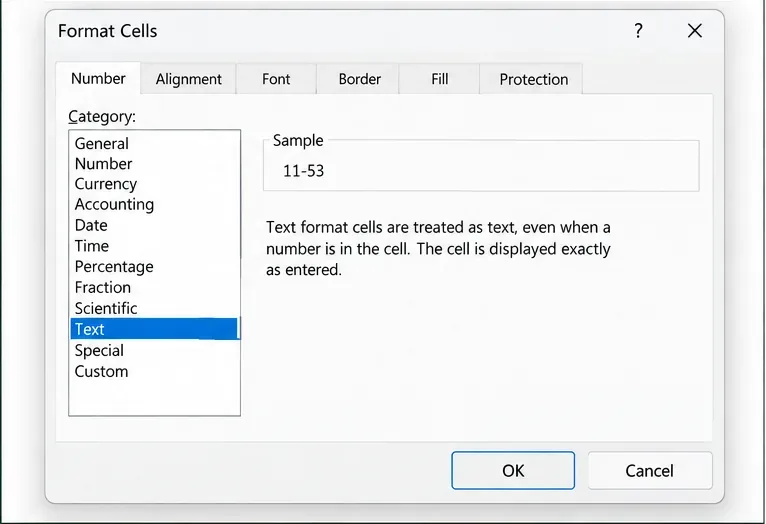
A Pay Type dropdown keeps recurring entries consistent instead of relying on free-text labels.
In the Maple Leaf Consulting example, the employee payroll table uses Hourly and Salaried for employees. If the business pays contractors, keep contractor payments logically separate from employee payroll unless your accounting process intentionally combines them for a specific review purpose.
Step 3: separate the two workweeks before you total hours
A bi-weekly pay period covers two weeks, but that does not mean overtime can be evaluated across a single 80-hour bucket. Under the FLSA, overtime for covered nonexempt employees is generally based on hours over 40 in a workweek, and the Department of Labor explicitly states that averaging hours over two or more weeks is not permitted. Review DOL Fact Sheet #23 on overtime pay for the federal rule and check any applicable state or local requirements.
That means a safer Time Log structure contains Week 1 Regular Hours, Week 1 Overtime Hours, Week 2 Regular Hours, and Week 2 Overtime Hours. Only after those workweek-level values are approved should the Payroll sheet combine them into pay-period totals.
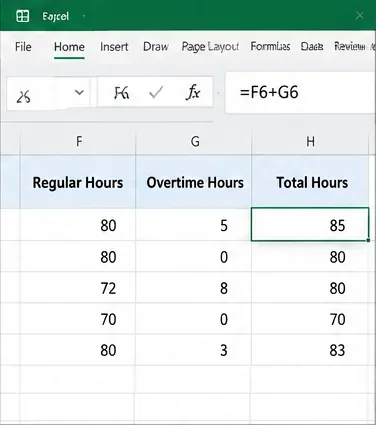
After each workweek has been reviewed, the payroll sheet can display pay-period regular, overtime, and total hours together.
A simple total-hours formula can add the two approved hour categories, for example =RegularHours+OvertimeHours. The important control is not the arithmetic; it is making sure the overtime figure was determined at the correct workweek level before it reaches this summary row.
Step 4: calculate or import earnings without turning Excel into an unverified tax engine
For an hourly employee, the workbook may show separate columns for Regular Pay, Overtime Pay, Bonus or Other Earnings, and Gross Pay. For a salaried employee, it can show the approved gross amount for that pay period. Do not assume every overtime calculation is simply hourly rate multiplied by 1.5 without checking the employee's regular-rate rules and applicable law.
A practical small-team workflow is to let the payroll system or approved payroll calculation produce the authoritative tax and wage amounts, then use Excel to reconcile them. If you do calculate earnings in Excel, document the formula and have it reviewed before relying on it.
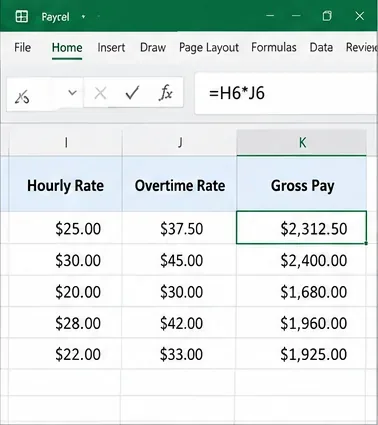
Illustrative pay-rate and gross-pay columns. The visible sample formula is only a layout example; use reviewed payroll rules rather than copying an unverified formula.
For the Maple Leaf Consulting example, the payroll reviewer might compare the spreadsheet's expected earnings against the payroll provider's gross-pay export. Any difference becomes a review item instead of being silently overwritten.
Step 5: record deductions and net pay as reconciliation fields
Keep deductions understandable. Instead of one opaque “Deductions” field, use columns that match the level of detail your review process actually needs, such as Federal Withholding, Social Security, Medicare, State or Local Withholding, Benefit Deductions, Garnishments, and Other Post-Tax Deductions. Not every employer needs every column.
For a tracker used primarily for reconciliation, these figures should usually be imported or copied from the approved payroll calculation. Then calculate Total Deductions with a SUM formula and Net Pay as Gross Pay minus Total Deductions.
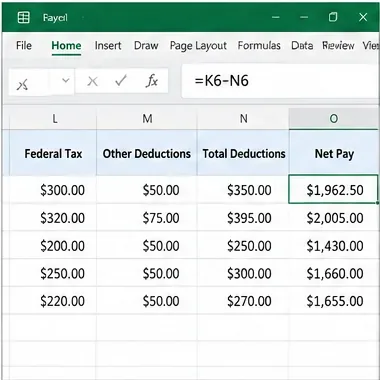
Deductions and net pay are easier to review when the worksheet separates inputs from the final net-pay result.
The IRS's 2026 Publication 15 states that employers should keep employment tax records for at least four years. Its employment tax recordkeeping guidance includes wage-payment amounts and dates, employee identifying information, withholding certificates, tax deposits, filed returns, and other employment-tax records. A payroll tracker can support this process, but it is not automatically a complete statutory record set by itself.
Step 6: add review flags so exceptions are visible before payday
A small payroll tracker is most useful when it tells the reviewer where to look. Add a Status column with values such as Ready, Review, and Missing Hours. Then use conditional formatting so exceptions are visually obvious.
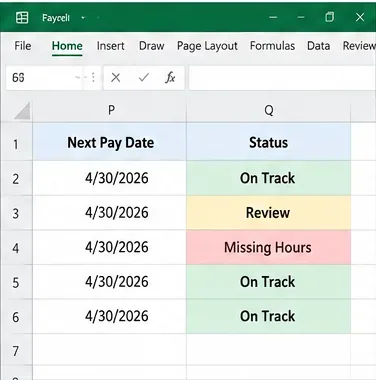
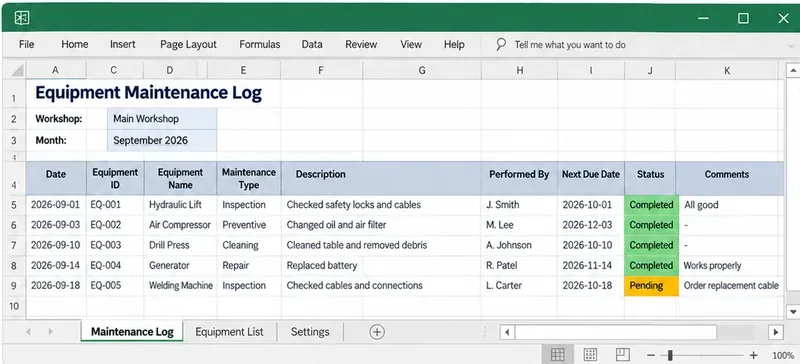
Color-coded status cells make missing or review-needed records stand out before the payroll is approved.
Microsoft explains that conditional formatting can apply formatting based on cell values. Keep the rule logic simple enough to audit. A useful formula-based flag might check whether an employee ID, approved hours, pay date, or gross-pay value is blank. Avoid complex hidden logic that only one person understands.
Step 7: build a one-screen payroll summary
Create a Summary sheet that answers the questions a reviewer asks before approving the period. For the fictional Maple Leaf Consulting pay run, the summary might show five employees, total regular hours, total overtime hours, gross pay, total deductions, and net pay. The numbers are illustrative; the purpose is to show the structure.
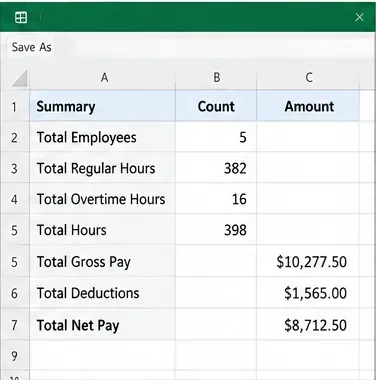
A compact summary gives the reviewer a single place to compare headcount, hours, gross pay, deductions, and net pay.
Use SUM for a single current-period table or SUMIFS when the workbook stores multiple pay periods and you need totals for a selected start date, end date, employee group, or status. Microsoft documents SUMIFS as a function that adds values meeting multiple criteria.
Also add two manual checks: the number of payroll rows should equal the expected employees for that pay run, and the sum of individual net-pay rows should match the payroll provider's net-pay total. If either check fails, stop the review and find the difference.
Step 8: save a clean reusable version without overwriting payroll history
After the current period is approved, preserve an immutable or access-controlled copy according to your recordkeeping process. Then make a clean working copy for the next pay period. Do not simply clear the previous figures from the only workbook you have.
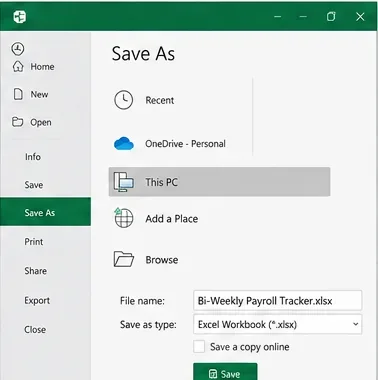
Save the reusable workbook with a clear name, while keeping approved pay-period records separately according to your retention policy.
A practical naming convention is Payroll_2026-04-30.xlsx for an approved period and Bi-Weekly_Payroll_Tracker_Template.xlsx for the reusable blank template. If several people edit the workbook, define who can change formulas, who enters hours, and who performs the final review.
A simple column layout you can copy
| Column | Use | Example for the fictional team |
|---|
| Employee ID | Stable internal key | E001 |
| Employee Name | Readable identification | John Smith |
| Pay Type | Controlled category | Hourly |
| Pay Period Start | Period control | 4/14/2026 |
| Pay Period End | Period control | 4/27/2026 |
| Regular Hours | Approved regular hours after week-level review | 80 |
| Overtime Hours | Approved overtime aggregated from the two workweeks | 5 |
| Gross Pay | Approved or reconciled gross amount | Illustrative amount only |
| Total Deductions | Approved payroll deductions | Illustrative amount only |
| Net Pay | Gross pay less approved deductions | Illustrative amount only |
| Status | Review control | Ready / Review / Missing Hours |
| Reviewer Notes | Exception explanation | Hours confirmed; provider total matched |
What should you not calculate in a simple Excel payroll tracker?
The strongest small-team design draws a boundary around what the workbook is for. Excel is excellent for structured inputs, formulas you can inspect, reconciliation, exception flags, and period summaries. It is a poor place to improvise changing tax tables, jurisdiction-specific withholding rules, garnishment limits, benefit plan rules, or employee-classification decisions without expert review and ongoing maintenance.
- Use Excel confidently for: period dates, employee IDs, approved hours, reviewed earnings components, imported deduction amounts, reconciliation, status flags, and summaries.
- Use validated payroll logic or professional guidance for: statutory withholding, tax deposits, complex overtime regular-rate calculations, multi-state payroll, garnishments, and compliance-specific calculations.
- Keep source records: time records, approved changes, payroll reports, tax records, and supporting documentation according to applicable federal, state, local, contractual, and business requirements.
How long should payroll records be kept?
There is no single retention period for every payroll-related document. The federal rules alone distinguish between different record types. The Department of Labor says payroll records covered by its FLSA guidance should generally be preserved for at least three years, while records on which wage computations are based, such as time cards and work schedules, should generally be retained for two years. The IRS states that employment tax records should be kept for at least four years. State or local law, benefit rules, litigation holds, contracts, or other requirements may require longer retention.
For Maple Leaf Consulting, the practical conclusion is not “keep the Excel file for exactly X years.” It is to map each record category to the applicable retention rule and make sure the workbook is only one part of that record set.
When is this template enough, and when should you move beyond it?
A simple Excel bi-weekly payroll tracker is a reasonable fit when the team is small, the pay structure is straightforward, one or two people control the process, and the workbook is mainly used for review and reconciliation. It becomes increasingly fragile when there are many employees, multiple legal entities, several states or countries, frequent pay-rate changes, commissions, tips, complex leave policies, garnishments, multiple approvers, or a need for role-based access and audit history.
For the fictional five-person Maple Leaf Consulting team, the spreadsheet works as a clear checklist: confirm the two workweeks, reconcile earnings and deductions, resolve any red flags, review the summary, and preserve the approved period. If the team grows and payroll exceptions become routine, the better next step is not to keep adding hidden formulas. It is to move more of the workflow into a payroll system designed to maintain those rules and controls.
Final checklist before each bi-weekly payroll is approved
- Confirm the pay-period start, pay-period end, and pay date.
- Verify every expected employee is present exactly once.
- Review Week 1 and Week 2 hours separately before aggregating overtime.
- Confirm approved rate or salary references are current.
- Reconcile gross pay to the authoritative payroll calculation.
- Reconcile deductions and net pay.
- Resolve every Review or Missing Hours flag.
- Confirm summary totals match the payroll provider or approved payroll register.
- Save the approved period separately from the reusable template.
- Retain the underlying records according to the applicable rules for your business.
This approach keeps the Excel template useful for what spreadsheets do well: organizing information, exposing arithmetic, and making a small review process repeatable. The fictional example is deliberately simple, but the design principle scales: keep payroll source data structured, keep compliance-sensitive calculations controlled, and make exceptions visible before money moves.