Home
» Tips
»
How to Stop Excel from Automatically Changing Numbers to Dates
How to Stop Excel from Automatically Changing Numbers to Dates
Excel is designed to recognize date-like entries, which is useful until a product code, fraction, part number, or identifier is silently interpreted as a date. The quality target is simple: the value you enter should remain exactly the value you intended, and it should still be there after you save, reopen, sort, filter, or import the workbook.
For most manually entered data, the most dependable fix is to format the destination cells as Text before entering or pasting the values. Microsoft specifically recommends this approach for entries that contain slashes or hyphens. For occasional one-off values, a leading apostrophe is faster. For CSV or other imported data, use import controls or Power Query so the affected column is treated as text rather than letting Excel guess.
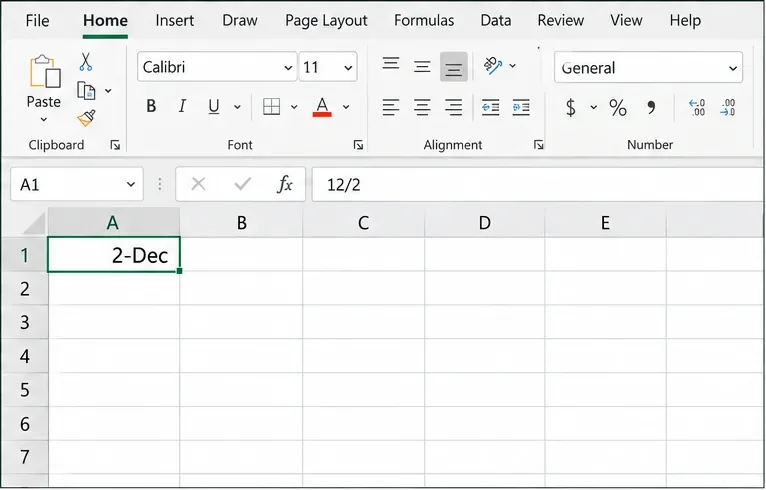
When Excel recognizes an entry such as 12/2 as a date, the displayed cell can change even though you intended to keep the original characters.
First, confirm that Excel is actually converting the value
A changed display does not always mean the same thing. If you type 12/2 and the cell becomes 2-Dec or another date format, Excel has interpreted the entry as a date. The exact display depends on your regional settings. Microsoft documents this behavior and notes that slash- and hyphen-based entries can be automatically formatted as dates. See Microsoft's guidance on stopping automatic number-to-date changes.
A useful verification is to click the cell and inspect the formula bar or temporarily change the cell to General. Excel stores true dates as serial values, so once an entry has been converted into a date, simply switching the cell to Text later does not reconstruct the original characters you typed. Microsoft explains that Excel stores dates as sequential serial numbers in its date calculation and formatting documentation.
What a successful fix should look like
Test
Good result
Change methods if...
Type a date-like code
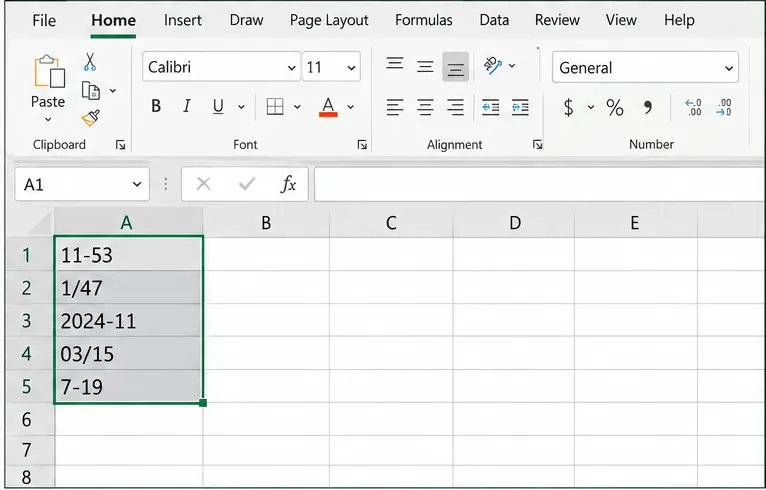
The cell keeps the exact characters, such as 11-53 or 1/47
Excel displays a calendar date instead
Copy and paste several values
All identifiers keep their original text
Only some rows survive unchanged
Save and reopen
The values remain unchanged
A CSV or import step converts them again
Use lookup formulas
Text identifiers match other text identifiers
One side is numeric/date data and the other side is text
Method 1: Format the cells as Text before typing or pasting
This is the best default when a whole column contains identifiers rather than quantities you plan to calculate. Examples include part numbers, case IDs, model codes, fractions that must remain literal, and codes such as 11-53.
Select the destination range before entering date-like identifiers so one formatting choice can protect the entire set of cells.
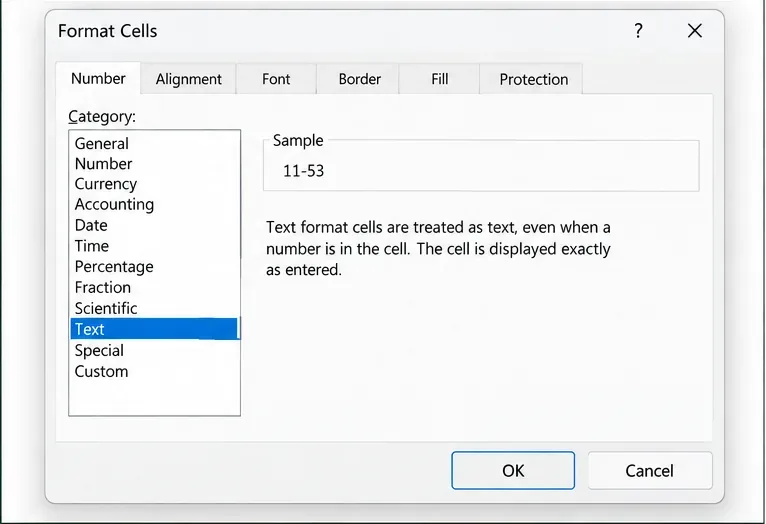
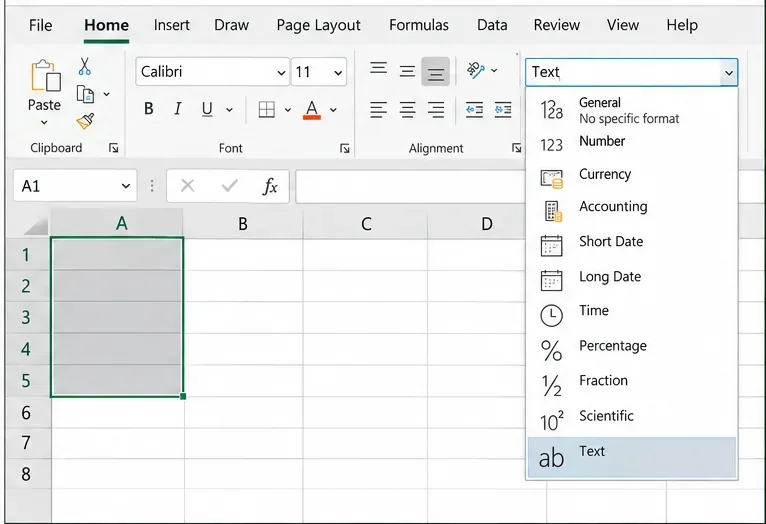
On Excel for Windows, select the cells, press Ctrl+1, choose Text in the Format Cells dialog, and select OK. On Mac, Microsoft documents Control+1 or Command+1 for number-format settings. In Excel for the web, select the range and use Home > Number Format > Text.
In the Format Cells dialog, choose Text before entering the identifiers you want Excel to preserve literally.The Home tab's Number Format menu also lets you set a selected range to Text before data entry.
Then enter the values again. A good result is not merely that the cells look correct: click a few representative cells and confirm the formula bar still contains the exact intended text. If you are preparing a reusable worksheet, format the entire input column as Text before distributing the file.
This method has a tradeoff. Text values are not numeric values, so arithmetic functions may not treat them as numbers. That is usually desirable for IDs and codes, but not for measurements or real dates. If the column mixes identifiers and numbers that must participate in calculations, consider separating them into different columns instead of forcing one format to serve two purposes.
Method 2: Use a leading apostrophe for a few individual entries
If you only need to enter a handful of date-like values, type an apostrophe before the value, for example '11-53 or '1/47. Excel stores the entry as text and does not display the apostrophe in the cell. Microsoft recommends the apostrophe approach for occasional entries and notes that lookup functions such as MATCH or VLOOKUP do not treat the apostrophe as part of the visible value.
This is a good method when speed matters more than column-wide consistency. It becomes awkward when hundreds of rows are involved, when data arrives from another system, or when other users may forget the prefix. In those cases, preformat the destination range or control the import process instead.
Method 3: For literal fractions, type a zero and a space
If your goal is to enter a mathematical fraction rather than preserve a text identifier, Microsoft recommends typing a zero and a space before the fraction, such as 0 1/2 or 0 3/4. Excel then treats the result as a fraction instead of a date. The leading zero does not remain in the displayed cell.
Use this method only when you actually want a numeric fraction that can be calculated. If 1/2 is a product code or label and must remain exactly as text, use Text formatting or an apostrophe instead.
Method 4: Control conversions when opening or importing CSV files
CSV files are a common source of trouble because they do not store Excel cell formats. When Excel opens or imports the file, it may infer data types from the text. For repeatable imports, use Data > Get Data > From File > From Text/CSV, then choose Transform Data and set the affected column's data type to Text in Power Query. Microsoft documents this workflow in its text and CSV import guidance and explains how to define a column as Text in Power Query data-type documentation.
For Excel for Microsoft 365 and Excel 2024, Microsoft also provides Automatic Data Conversion controls. On supported Windows versions, these are under File > Options > Data. One option can stop Excel from converting continuous letters and numbers such as JAN1 into a date. Another option can warn when a CSV or similar file is about to undergo automatic conversions. See Microsoft's Data import and analysis options.
There is an important limit: this setting does not mean every date-like pattern can be disabled globally. Microsoft specifically notes that entries with spaces or other characters, such as JAN 1 or JAN-1, may still be treated as dates. Its separate support article for slash- and hyphen-based number entry continues to recommend preformatting cells as Text. In other words, Automatic Data Conversion settings are helpful, but Text formatting remains the safer choice when exact preservation is the requirement.
What to do if Excel already changed the values
If the conversion just happened, Undo is the cleanest recovery because it can restore the state before Excel interpreted the entry. Then format the target cells as Text and re-enter or paste the original data.
If the workbook has already been saved and the source values are no longer available, changing the cell format to Text will not reliably recover what was originally typed. Once Excel has stored a recognized date as a serial value, multiple original strings could potentially map to the same date depending on locale and formatting. Recover the values from the original CSV, export, database, email, or other source system whenever accuracy matters.
For a large dataset, do not manually guess hundreds of original codes from displayed dates. Re-import the source with the correct text type, then compare row counts and a sample of known identifiers. This is faster to audit and less likely to introduce new errors.
When should you switch to a different approach?
Stay with Text formatting when the column is primarily IDs, codes, labels, or literal strings.
Use an apostrophe when only a few individual entries need protection.
Use 0 plus a space when the value is a real numeric fraction, not an identifier.
Use Power Query when you repeatedly import CSV, TXT, JSON, web, or other structured data and need a reproducible type rule.
Use Automatic Data Conversion controls when you have Microsoft 365 or Excel 2024 and the unwanted conversion matches one of the conversions Microsoft exposes as an option.
Quality checklist before you consider the problem fixed
Enter at least three troublesome examples, including a slash value and a hyphen value.
Confirm the visible cell and formula bar both show the intended characters.
Save, close, and reopen the workbook.
If data comes from CSV, repeat the actual import path rather than testing only manual typing.
Check formulas or lookups that depend on the values; text and numeric/date values are different data types.
Keep a copy of the original source file before repairing already-converted data.
Bottom line
If exact preservation is the goal, the strongest result comes from deciding the data type before Excel sees the values. Preformat identifiers as Text, use an apostrophe for occasional entries, and define imported columns as Text in Power Query. Newer Automatic Data Conversion settings can reduce some unwanted conversions, but they are not a universal off switch for every date-like pattern.
The final test is practical: your value should remain unchanged after entry, import, save, reopen, and any downstream lookup that depends on it. If it does not, change the ingestion method rather than repeatedly correcting the display after conversion has already happened.