September 2026 update: Microsoft changed the Exchange Online SMTP AUTH Basic Authentication retirement schedule earlier this year. In an Exchange Team update published January 27 and revised January 29, 2026, Microsoft said SMTP AUTH Basic Authentication behavior will remain unchanged through December 2026. At the end of December 2026, it is scheduled to be disabled by default for existing tenants, while administrators can still enable it if needed; for new tenants created after December 2026, OAuth is the supported authentication method. See the Exchange Team's updated SMTP AUTH Basic Authentication timeline.
That update matters if Outlook is using a legacy POP/IMAP-style setup or if your organization has devices and applications that submit mail through authenticated SMTP. It does not mean every Outlook user who suddenly cannot send mail in September 2026 is being blocked by the retirement. Microsoft notes that modern Outlook clients connected to Microsoft 365 generally do not use SMTP AUTH to send messages. For most users, the faster path is still to identify whether the problem is a stuck message, offline state, expired sign-in, account/profile problem, or an outgoing-server configuration issue.
This guide focuses on the common situation where Outlook continues to receive messages but sending fails, messages remain in the Outbox, or an outgoing-server error appears. The screenshots below are interface illustrations for the relevant Outlook and Windows controls; use the labels and paths described in the text rather than treating a sample error code or sample address as evidence of your specific cause.
Why can Outlook receive email but not send it?
Receiving and sending do not always use the same path. A POP or IMAP account can successfully download or synchronize incoming mail while its SMTP connection fails authentication, uses the wrong server or port, or is blocked by an account policy. With Microsoft 365 or Exchange accounts, a damaged local Outlook profile, stale authentication state, offline mode, or a stuck Outbox item can also prevent sending even though previously synchronized mail still appears normally.
Use one quick diagnostic before changing settings: try sending a short message with no attachment from the provider's webmail interface, such as Outlook on the web for Microsoft 365. If webmail sends successfully but desktop Outlook does not, concentrate on Outlook, its profile, cached credentials, and local security software. If webmail also cannot send, changing the desktop profile is unlikely to solve the underlying account, service, policy, or mailbox problem.
Step 1: force a send and capture the exact symptom
In classic Outlook for Windows, open the Send/Receive tab and choose Send/Receive All Folders. If Outlook reports an error, write down the exact message before trying broad fixes. The wording can separate authentication problems from connection failures, message-size limits, recipient or relay errors, and local profile issues.
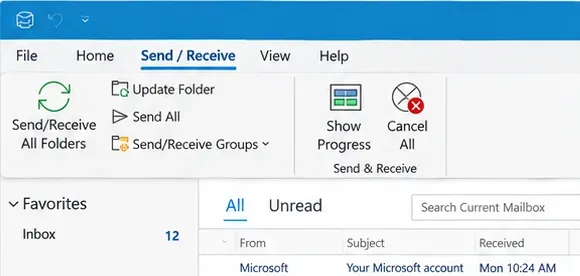
Classic Outlook's Send/Receive controls can trigger an immediate send attempt and make a connection problem easier to observe.
Microsoft's current Outlook send and receive troubleshooting guide recommends starting with quick checks before moving to deeper profile repair. If only one message fails while other mail sends, treat that message as the first suspect rather than rebuilding Outlook.
Step 2: clear the oldest stuck message from the Outbox
A single unsent message can block later messages behind it. Open the Outbox and start with the oldest item. Look for a large attachment, a message that was edited while Outlook was attempting to send, or a draft that repeatedly returns to the queue.
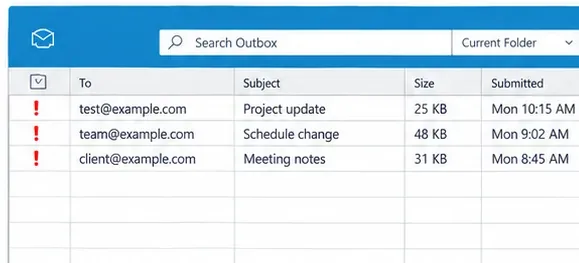
Start with the oldest queued Outbox item; one stuck message can make it look as though the entire account has stopped sending.
Microsoft specifically advises removing or replacing a large attachment when troubleshooting stuck Outlook messages. Its current guidance uses 20 MB as the attachment threshold in this troubleshooting flow, although actual provider and organization limits can differ. If the file is large, remove it, compress it, or share a cloud link instead. Then resend a small text-only message.
If Outlook will not let you edit or delete the stuck item because it is actively trying to transmit it, classic Outlook can be put temporarily into Work Offline mode, the message can be moved or deleted, and Outlook can then be returned online. Microsoft documents this behavior in its Outlook email stuck guidance.
Step 3: make sure classic Outlook is not Working Offline or Disconnected
Receiving mail earlier in the day does not prove Outlook is connected now. In classic Outlook, look at the status bar. Microsoft says Disconnected, Working Offline, or Trying to connect indicates that Outlook cannot reach the mail server.
Open Send/Receive and select Work Offline to toggle back online if it is enabled. Microsoft describes the status indicators and reconnect action in How to work offline in Outlook for Windows.
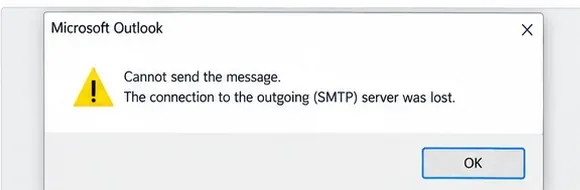
An outgoing-server connection warning points to the sending path; record the exact wording before changing unrelated Outlook settings.
Also verify that ordinary web browsing works. If the whole computer has lost network access, troubleshoot Windows or the network first. If the internet works and webmail sends normally, continue with Outlook-specific steps.
Step 4: refresh the sign-in after a password or authentication change
If the email account password changed recently, Outlook may continue showing synchronized messages while the next send attempt requires fresh authentication. In new Outlook, Microsoft says the account can prompt you to continue and sign in again. For third-party providers, Outlook may also display a request for an app password if that provider requires one.
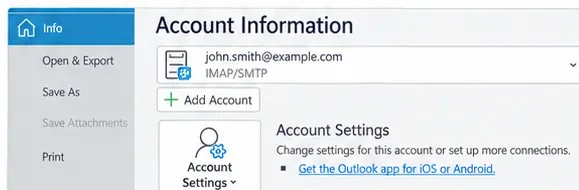
Account Information is the starting point for reviewing how a classic Outlook account is configured; new Outlook uses its current account settings interface instead.
Do not create an app password unless your email provider explicitly documents that requirement. Microsoft 365 is built around Modern Authentication rather than using an app password as a general fix. Microsoft's Outlook email setup troubleshooting page notes that password changes and provider-specific authentication requirements can prevent Outlook from connecting correctly.
A useful test is to sign out and reauthenticate only after you have confirmed the password works on the provider's website. Repeatedly changing the password without checking webmail can make diagnosis harder.
Step 5: if this is a POP or IMAP account, verify the outgoing SMTP settings
This step is especially important when Outlook receives through POP or IMAP but cannot send. POP and IMAP are incoming-mail protocols; sending uses a separate outgoing SMTP configuration. Microsoft explains this separation in its Exchange Online documentation: POP3 and IMAP4 clients use authenticated SMTP submission when they need to send mail through SMTP AUTH.
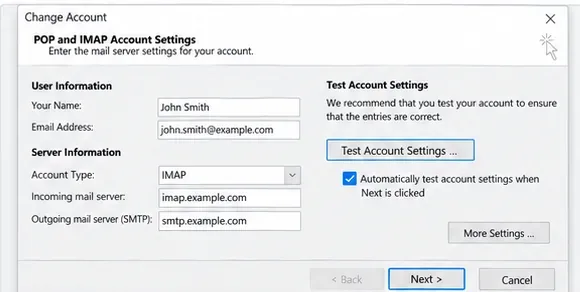
POP/IMAP setups have separate incoming and outgoing server fields, so receiving can work while SMTP sending is misconfigured.
Compare the outgoing server name, port, encryption method, username format, and authentication requirement with the official documentation from your mail provider. Do not copy server values from a random troubleshooting site. For Microsoft 365 organizations that intentionally use SMTP AUTH, Microsoft's authenticated client SMTP submission documentation says SMTP AUTH is typically submitted on TCP port 587 and can use OAuth.
If the account is a normal Microsoft 365 or Exchange account in modern Outlook, do not manually convert it into a POP/IMAP + SMTP profile just to solve a sending problem. Microsoft says modern email clients such as Outlook generally do not use SMTP AUTH for ordinary Exchange Online mailbox sending.
Step 6: check SMTP authentication only when your account actually uses SMTP
For a classic POP/IMAP profile, the outgoing server may require authentication. The exact option and credentials depend on the provider. A typical classic Outlook configuration exposes an Outgoing Server tab where SMTP authentication can be enabled.
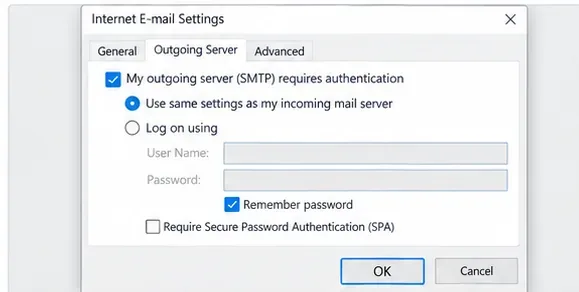
In a POP/IMAP configuration, outgoing SMTP authentication is separate from receiving settings and must match the provider's documented requirements.
For Exchange Online administrators, there is another layer: SMTP AUTH can be disabled for the organization or for a specific mailbox. Microsoft documents both organization-level and mailbox-level controls in the SMTP AUTH article linked above. If a legacy application or POP/IMAP client suddenly cannot send while Outlook on the web works, an administrator should check whether SMTP AUTH is enabled for that workload and whether the application supports OAuth.
What the 2026 SMTP AUTH change means right now
As of September 2026, the Exchange Team's revised timeline says Basic Authentication behavior for SMTP AUTH is unchanged until the end of December 2026. Therefore, a sending failure today should not automatically be blamed on a completed global shutdown of SMTP AUTH Basic Authentication. However, organizations still using Basic Authentication should use the remaining time to move to OAuth or another supported sending method instead of treating temporary re-enablement as a long-term design.
Microsoft's broader Basic Authentication deprecation documentation, updated in July 2026, confirms that Basic Authentication has already been removed for the major Exchange Online client protocols and directs developers and applications toward Modern Authentication.
Step 7: repair the classic Outlook account or profile
If webmail sends successfully, the Outbox is clear, Outlook is online, and the account credentials and provider settings are correct, the local Outlook profile becomes a stronger suspect.
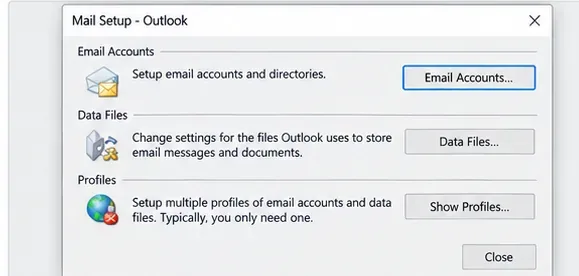
The classic Outlook Mail Setup dialog provides access to account configuration and Outlook profiles.
Microsoft's profile repair instructions for classic Outlook use File > Account Settings > Account Settings, then select the account and choose Repair. Microsoft notes that the Repair option is not available for Outlook 2016 connected to an Exchange account.
If repair does not help, creating a new classic Outlook profile is a cleaner diagnostic than repeatedly editing the existing one. If the new profile sends correctly, the original profile was likely the problem. Preserve any local-only PST data before removing profiles or accounts.
For automated diagnosis, Microsoft now directs classic Outlook users to Windows Get Help troubleshooters. The classic Outlook troubleshooters page lists profile setup, authentication, and connectivity troubleshooters and states that these tools do not apply to new Outlook for Windows.
Step 8: check local security software only if the evidence points to the PC
Firewall, antivirus, VPN, proxy, or endpoint security software can affect outbound connections, but they should be late-stage suspects when receiving works. Do not disable security software globally as a routine fix. Instead, check its event log, explicit block notification, VPN behavior, or administrator policy.
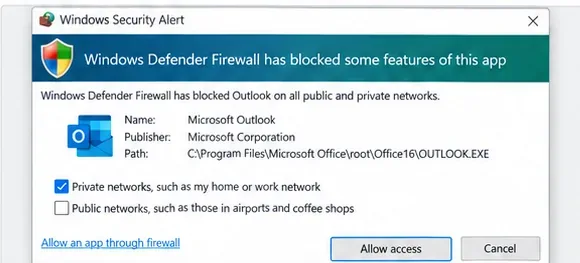
If Windows or endpoint security explicitly reports that Outlook is blocked, review the specific rule rather than disabling the firewall entirely.
A useful isolation test is to try Outlook on another trusted network or temporarily disconnect a VPN if your organization's policy permits it. If webmail sends and another device sends from the same account, but only one Outlook installation fails, that evidence supports a local application, profile, or security-software cause.
After any change, send a short test message to an address you control. Confirm that it leaves the Outbox and appears in Sent Items. Then reply from the recipient account. A test that both sends and receives verifies more than simply seeing Outlook report “Connected.”
Quick diagnosis table
| What you observe | Most useful next check | Why |
|---|
| One message is stuck; others were sending earlier | Open the oldest Outbox item and remove large attachments | A single queued item can block later sends |
| Status says Working Offline or Disconnected | Reconnect from Send/Receive and test network access | Outlook cannot reach the server while offline |
| Webmail sends, desktop Outlook does not | Reauthenticate, repair the account/profile, or create a test profile | The mailbox and server path are probably working |
| IMAP receives but SMTP send fails | Verify outgoing server, port, encryption, and authentication with provider documentation | Incoming and outgoing connections are configured separately |
| Microsoft 365 SMTP AUTH app fails | Administrator checks SMTP AUTH policy and OAuth support | SMTP AUTH can be disabled per organization or mailbox |
| Only one PC fails and security software reports a block | Review the explicit rule or endpoint policy | The failure is localized to that device |
What not to do
- Do not change random SMTP ports. Use the official settings from your provider or administrator.
- Do not assume receiving proves the outgoing configuration is correct. POP/IMAP receiving and SMTP sending are separate paths.
- Do not disable the firewall or antivirus permanently. Investigate an explicit block and restore normal protection after testing.
- Do not create an app password as a universal workaround. Use the authentication method your provider currently supports.
- Do not remove a profile before protecting local-only data. PST files and locally stored content may need to be preserved.
- Do not blame the December 2026 SMTP AUTH change early. Microsoft's current timeline says the default-disable milestone has not happened yet as of September 2026.
When should you contact your administrator or email provider?
Escalate when the same account cannot send from webmail, multiple users are affected at the same time, the error explicitly references policy or authentication that you cannot change, or the mailbox uses Microsoft 365 organizational settings such as SMTP AUTH restrictions. Administrators can also review Microsoft 365 service health and message-trace information that an end user cannot access.
If only classic Outlook is affected after the account works in webmail, Microsoft recommends its current classic Outlook troubleshooters and profile-repair path. If you are using new Outlook, use the new Outlook troubleshooting flow rather than following screenshots and profile tools that apply only to classic Outlook.
Bottom line
When Outlook can receive but cannot send, troubleshoot the outgoing path in a controlled order: capture the error, clear the Outbox, verify Outlook is online, refresh authentication, confirm SMTP settings only for accounts that actually use SMTP, then repair the local profile or investigate a device-specific security block. For Microsoft 365 organizations still depending on SMTP AUTH Basic Authentication, the January 2026 timeline revision gives additional time, but OAuth remains the direction Microsoft is moving toward.