Home
» Tips
»
Simple Inventory Count Sheet Template in Excel for Retail Stores: Fields, Formulas, and Count Workflow
Simple Inventory Count Sheet Template in Excel for Retail Stores: Fields, Formulas, and Count Workflow
A retail inventory count sheet does not need to be complicated to be useful. For a small store, pop-up shop, stockroom, or department count, a well-structured Excel worksheet can give staff a consistent place to record what the system says should be on hand, what was physically counted, and where the differences need investigation.
The goal is not to turn Excel into a full inventory-management platform. The goal is to create a dependable count document that is easy to use under real store conditions, easy to review afterward, and simple enough that staff do not bypass it. A good result should let you answer four questions quickly: What item was counted? Where was it counted? What quantity was expected versus found? What action is needed for any variance?
What should a simple retail inventory count sheet include?
For most store counts, start with one row per SKU-location combination. If the same SKU is stored on the sales floor and in a backroom, use separate rows unless your process intentionally combines those locations. This makes discrepancies easier to trace.
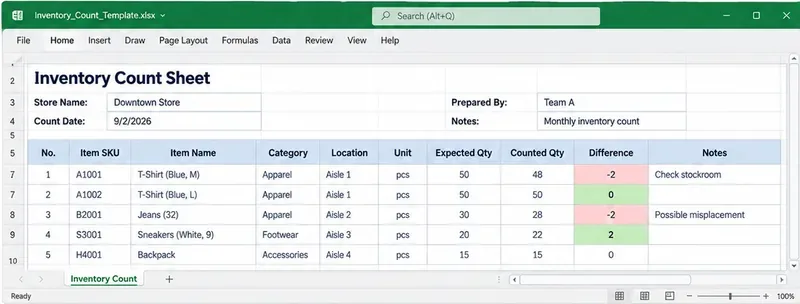
Column
Purpose
Recommended entry
SKU
Unique item identifier
Text, including leading zeros if your SKUs use them
Item Name
Human-readable product description
Short but specific description
Category
Groups similar products
Apparel, Footwear, Grocery, Accessories, etc.
Location
Shows where the item is being counted
Aisle, shelf, stockroom zone, display, or bin
Unit
Clarifies the counting unit
Each, pack, case, pair, bottle, and so on
Expected Qty
System quantity captured for comparison
Number from the inventory or POS system at the agreed cutoff
Counted Qty
Physical quantity found
Whole number for item-by-item counts
Difference
Shows shortage or overage
Calculated field
Unit Cost
Optional financial context
Use only if staff are authorized to see it
Variance Value
Optional value of the discrepancy
Calculated field
Notes
Documents exceptions
Examples: damaged, misplaced, recount required
AI-generated illustration of a simple retail inventory count sheet in Excel. It is an example layout, not a screenshot of a downloadable workbook.
Recommended worksheet structure
Keep the workbook small enough that staff can understand it without training on dozens of tabs. A practical layout is:
Count Sheet: the working list used during the physical count.
Instructions: a short explanation of cutoff time, counting rules, who signs off, and how recounts are handled.
Lists: optional controlled values for Category, Location, Unit, and Count Status drop-downs.
If the count is large, split the work by physical zone rather than creating many unrelated spreadsheet versions. One controlled workbook is usually easier to reconcile than several copies with different formulas or column orders.
How to set up the Excel sheet
1. Convert the count range into an Excel Table
Enter your headers and sample rows, select the range, and use Home > Format as Table or Insert > Table. Microsoft documents that Excel Tables group and analyze data, carry headers with the data, and support built-in filtering. For a count sheet, that makes it easier to filter by category, location, or items with discrepancies. See Microsoft’s Create and format tables guidance.
Name the table something clear, such as InventoryCount. Avoid clever names that only the workbook creator understands.
2. Use simple formulas for variance
If your table headers are Expected Qty and Counted Qty, a Difference column can use a structured-reference formula such as:
=[@[Counted Qty]]-[@[Expected Qty]]
With that convention, a negative result means fewer units were found than expected, zero means the count matched, and a positive result means more units were found.
If you include Unit Cost, an optional Variance Value formula is:
=[@Difference]*[@[Unit Cost]]
Keep these formulas visible to the person maintaining the workbook. If a result looks wrong, the reviewer should be able to inspect the formula instead of treating the spreadsheet as a black box.
3. Restrict quantity-entry cells
For physical item counts that must be whole numbers, use Excel data validation on the Counted Qty column. Microsoft’s current instructions allow cells to be restricted to whole numbers, decimals, lists, dates, times, text length, or custom rules. Go to Data > Data Validation and choose the rule appropriate for your count. See Apply data validation to cells.
Do not use a whole-number rule if your business legitimately counts fractional quantities, such as goods sold by weight or length. The validation rule should reflect the unit you actually control.
4. Highlight exceptions rather than every row
Conditional formatting is most useful when it directs attention to a problem. For example, apply a rule to the Difference column so nonzero values are visually distinct. Microsoft notes that conditional formatting can evaluate cell values or formulas and can be applied to ranges and Excel Tables. See Use conditional formatting to highlight information in Excel.
Avoid a rainbow of status colors. If every condition is highlighted, staff lose the visual cue that matters: which rows need investigation or recounting.
5. Keep headers visible during long counts
If the list runs for hundreds of rows, freeze the header area. In Excel, View > Freeze Panes keeps selected rows or columns visible while you scroll. Microsoft explains that Freeze Panes locks the rows above and columns to the left of the selected cell. See Freeze panes to lock rows and columns.
For a simple inventory sheet, freezing the header row is usually enough. Freeze extra columns only if SKU or Location must remain visible while reviewing fields farther to the right.
Quick count-day checklist
Choose a count cutoff and make sure everyone knows whether sales, receipts, transfers, and returns can continue during the count.
Export or copy the expected quantities at that cutoff; do not refresh them halfway through unless your procedure explicitly requires it.
Confirm every row has a SKU, description, and location before staff begin.
Assign physical zones so two people do not unknowingly count the same stock.
Enter physical counts in Counted Qty, not in Expected Qty.
Review every nonzero Difference.
Recount material or unusual variances before adjusting the inventory system.
Record a short reason in Notes when the cause is known.
Save an untouched copy of the completed count sheet before making post-count corrections.
How should you handle recounts?
Do not simply overwrite the first count if your business needs an audit trail. Add optional columns such as Count 1, Count 2, and Final Count, or preserve the first count in a separate locked copy before entering the verified result.
A useful rule is to recount based on risk, not just on whether the variance is large in units. Ten missing low-cost accessories and one missing high-value item may require very different attention. If you track Unit Cost, Variance Value can help prioritize review, but it should not replace operational judgment.
How to make the sheet practical for paper counting
Some stores prefer paper in aisles and Excel for reconciliation. If that is your process, design the sheet for printing before count day. Use landscape orientation when you have many columns, remove fields counters do not need, and preview the output so quantities and SKU labels remain readable.
If counters will write quantities by hand, leave enough row height and a clearly bounded Counted Qty column. A printout that looks elegant on screen but gives staff no room to write is not a good count sheet.
Common mistakes that make inventory sheets unreliable
Mixing multiple locations into one row
If a product exists on a shelf, endcap, returns cart, and stockroom rack, a single combined row can hide where the variance happened. Use separate location rows when location-level control matters.
Changing expected quantities during the count
If Expected Qty keeps changing while people are counting, the Difference column stops representing one clear point in time. Define the cutoff or movement procedure before the count starts.
Letting staff type over formulas
Difference and Variance Value should normally be calculated, not manually entered. Consider protecting formula columns after the workbook is tested, while leaving count-entry and notes cells editable.
Using descriptions instead of SKUs as the primary key
Descriptions can be duplicated or changed. Keep the SKU or another stable item identifier as the key field, and use the description to help humans recognize the product.
Ignoring zero or blank counts
A blank can mean “not counted,” while zero can mean “counted and none found.” Those are different operational states. Decide which convention your team will use and document it on the Instructions sheet.
When is Excel enough, and when should you use another system?
Situation
Excel count sheet fit
Small store with periodic manual counts
Good fit if the workbook is controlled and reviewed
Cycle counts by aisle or stockroom zone
Good fit for structured count lists and variance review
Multiple stores editing the same inventory simultaneously
Possible, but process control becomes more important
Real-time stock movement, receiving, transfers, and sales integration
Use the inventory/POS system as the system of record
Barcode-driven warehouse workflows or high transaction volume
Dedicated inventory or warehouse software is usually more appropriate
Excel works best here as a controlled counting and reconciliation tool. It becomes a poor substitute when you need real-time transaction control, automatic replenishment, serialized inventory, complex permissions, or several locations posting stock movements at the same time.
A simple quality check before you reuse the template
Before saving the workbook as your standard retail inventory count sheet, test it with a small real-world sample. Use ten to twenty SKUs from different categories and locations. Enter a matching count, a shortage, an overage, a zero count, and a recount. Then verify that:
filters work as expected;
quantity validation accepts legitimate entries and rejects invalid ones;
Difference calculates correctly for every test case;
conditional formatting draws attention to exceptions;
printed headers repeat correctly if you use paper counts;
no one needs to edit formula cells to complete the count;
the sheet can be understood by a counter who did not build it.
If those checks pass, the template is doing its main job: making physical counting consistent and making exceptions easier to investigate. Add features only when they solve a specific recurring problem. A retail count sheet that is simple, controlled, and used correctly is usually more valuable than a complex workbook that staff cannot follow reliably.