Home
» Tips
»
Printable Event Planning Checklist & Budget Template for Word: What to Include and When to Use Excel Instead
Printable Event Planning Checklist & Budget Template for Word: What to Include and When to Use Excel Instead
A printable event planning checklist and budget template in Microsoft Word works best when you want one document that is easy to edit, print, annotate, and share. It is especially useful for weddings, conferences, fundraisers, school events, parties, community programs, and small business events where a planner needs a clear task list plus a simple budget summary.
The tradeoff is that Word is a document editor first, not a spreadsheet. Microsoft currently supports check boxes, fillable content controls, date pickers, tables, and even basic table formulas in Word, but Excel remains the stronger choice when you need frequent recalculation, detailed cost analysis, or many budget line items. The right template therefore depends on how you plan to use it: as a printable organizer, a fillable planning form, a reusable document template, or a live financial tracker.
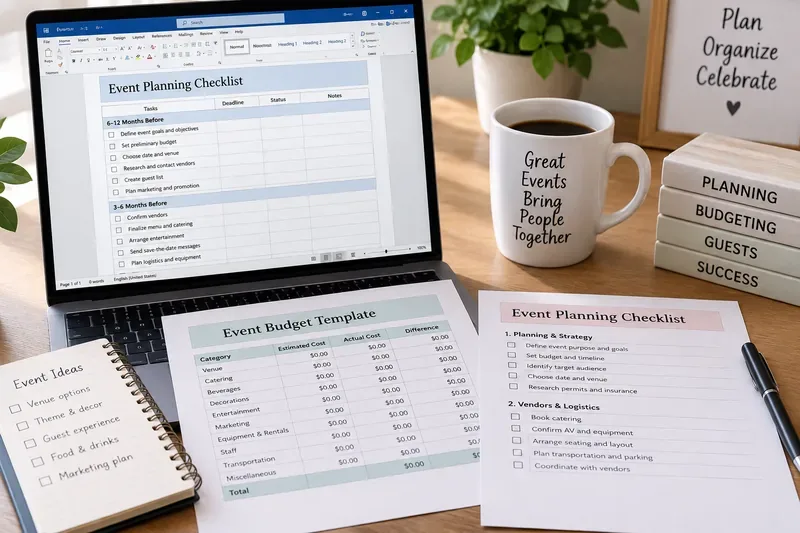
A Word-based event planning template can combine a printable checklist, deadlines, status notes, and a concise budget table in one document.
What should a printable event planning template include?
A useful template should reduce the number of decisions you have to make while planning. That means the layout should capture tasks, owners, due dates, costs, and important event details without turning every page into a dense project-management system.
For most events, a practical Word template can be divided into five parts:
Event overview: event name, date, time, location, purpose, target attendance, primary contact, and key notes.
Planning checklist: tasks grouped by timing or workstream, with check boxes, due dates, owners, and status.
Vendor and logistics section: venue, catering, rentals, entertainment, transportation, permits, insurance, equipment, and contact details.
Budget table: category, estimated cost, actual cost, deposit paid, balance due, and variance or notes.
Day-of-event section: final confirmations, setup, staffing, emergency contacts, schedule, breakdown, and post-event follow-up.
Recommendation: If your goal is a document people will print and carry, keep the main checklist to one or two pages and move detailed vendor notes or financial records to separate pages.
Word checklist or spreadsheet tracker: which format fits your event?
Need
Word template
Excel workbook
Better choice
Print-friendly checklist
Excellent
Good, but can require print-area setup
Word
Interactive check boxes
Supported
Supported through spreadsheet controls/features
Depends on workflow
Long written notes
Excellent
Less natural
Word
Budget totals and frequent recalculation
Possible with table formulas
Designed for formulas and recalculation
Excel
Many transactions or vendors
Can become cumbersome
Strong for sorting, formulas, and structured lists
Excel
Single printable planning packet
Excellent
Less document-like
Word
Reusable document template
Can be saved as a Word template
Can also be templated, but is less suited to narrative planning pages
Word for document-heavy use
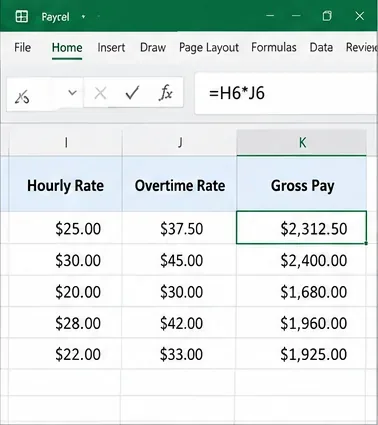
Microsoft's own template catalog emphasizes Excel for budget templates and describes those templates as being populated with formulas for calculations. That is a good clue about the division of labor: Word is ideal for the printable planning packet, while Excel is more appropriate for a budget that changes constantly. See Microsoft Create budget templates.
Recommendation: For a small event with 10 to 30 cost lines, a Word budget table may be perfectly adequate. For a conference, wedding, festival, or event with many invoices, deposits, tax amounts, and changing quantities, keep the checklist in Word and track the financial detail in Excel.
Option 1: Use Word as a printable checklist
This is the simplest and most robust format when the document will be printed. Microsoft documents a print-only checklist method that replaces ordinary bullets with a box symbol. The result looks like a traditional paper checklist and does not require users to interact with form controls.
Microsoft also supports interactive checklist items. In desktop Word, check box content controls can be added from the Developer tab. Word for the web has an interactive checklist feature as well. See Microsoft's checklist instructions for Word.
Choose print-only boxes when: people will primarily use pens, multiple copies will be handed out, or compatibility matters more than digital interaction.
Choose interactive check boxes when: the planner will work mainly in Word and wants completed items to remain visibly checked in the digital file.
Option 2: Make the template fillable in Word
A printable template does not have to be static. Microsoft Word supports content controls for check boxes, text fields, date pickers, and drop-down lists. Microsoft specifically documents these controls for forms that users can complete and then save or print. See Microsoft's guide to creating fillable forms in Word.
For an event-planning form, useful fillable fields can include:
Event date and venue
Planner or coordinator name
Expected attendance
Vendor status such as Not Contacted, Quoted, Booked, or Paid
Deposit due date
Final payment date
Event status such as Planning, Confirmed, Completed, or Canceled
The benefit is consistency: users select from predefined choices instead of typing slightly different status labels throughout the document. The drawback is setup time. A simple print-only checklist is faster to create and often easier for occasional users.
Recommendation: Use content controls when the template will be reused by a team or client. For a one-time personal event, simple tables and printable boxes are usually enough.
What belongs in the event planning checklist?
There is no single universal event timeline. A large wedding booked a year ahead and a 30-person workshop organized in six weeks should not have identical deadlines. A better Word template groups tasks by phases so you can adjust timing without rewriting the structure.
Planning and strategy
Define event purpose, goals, and audience
Set target date and backup date
Estimate attendance
Set preliminary budget
Assign decision-makers and responsibilities
Venue and logistics
Research and book venue
Confirm capacity and accessibility needs
Review permits, insurance, and venue rules
Plan parking and transportation
Arrange tables, chairs, staging, power, internet, and audiovisual equipment
Vendors and services
Request quotes
Review contracts
Track deposits and balances
Confirm catering and dietary requirements
Book entertainment, photography, rentals, security, or cleaning as needed
Guests and communications
Create guest or attendee list
Send invitations or registration information
Track responses
Send reminders and practical instructions
Prepare signage, badges, programs, or seating information
Final week and event day
Reconfirm vendors
Finalize headcount
Prepare payment envelopes or payment records
Print schedules and contact lists
Confirm setup and breakdown responsibilities
Prepare emergency and contingency contacts
Inspect the venue before guests arrive
Post-event
Confirm final invoices
Return rental items
Send thank-you messages
Collect feedback
Record lessons learned and final actual costs
Recommendation: Remove any item that does not apply to your event. A shorter checklist that gets used is more valuable than a comprehensive document that people stop reading.
How should the budget section be structured?
A printable Word budget works best as a summary. A practical table can use these columns:
Category
Estimated
Actual
Paid
Balance / Notes
Venue
$0.00
$0.00
$0.00
Catering
$0.00
$0.00
$0.00
Rentals
$0.00
$0.00
$0.00
Entertainment / Speakers
$0.00
$0.00
$0.00
Marketing / Printing
$0.00
$0.00
$0.00
Transportation
$0.00
$0.00
$0.00
Contingency / Miscellaneous
$0.00
$0.00
$0.00
Word can calculate sums inside tables. Microsoft documents the Formula command and formulas such as =SUM(ABOVE) or =SUM(LEFT). However, Word's calculations are implemented as table formula fields, and Microsoft notes that changing numbers may require updating the result. Word for the web preserves formulas that already exist but does not currently provide the same ability to add new table formulas as desktop Word. See Microsoft's Word table calculation guide.
Recommendation: Use Word formulas only for simple totals. Use Excel if the budget needs automatic variance calculations, quantities, unit prices, taxes, multiple payment dates, filtering, or frequent revisions.
DOCX vs. DOTX vs. PDF: which file should you distribute?
These formats serve different purposes.
Format
Best use
Main tradeoff
DOCX
Editable working copy
Easy to overwrite the original accidentally
DOTX
Reusable Word template
Most useful in desktop Word; some workflows are simpler with ordinary DOCX copies
If the goal is reliable printing, PDF is often the better distribution copy because its layout is fixed. Microsoft documents saving or converting Word documents to PDF from the desktop apps and Word for the web. See Microsoft's PDF export instructions.
Recommendation: Keep an editable DOCX or DOTX master, then export a PDF when you need a stable copy for printing or distribution.
Design choices that matter when the template will be printed
A printable planner should be optimized for handwriting as well as screen viewing. Leave enough row height for notes, avoid excessively narrow columns, and keep color contrast strong enough that the document remains readable on a black-and-white office printer.
If a table spans several pages, Word can repeat the header row automatically at the top of later pages. Microsoft notes that this works in Print Layout and in the printed document. See Microsoft's repeated table header instructions.
Before distributing the template, use Word's Print preview. Microsoft recommends previewing the document from File > Print before printing. See Microsoft's Word printing guide.
Recommendation: Test-print one copy before sending the template to a large group. Check whether rows split awkwardly, text is too small, check boxes are easy to mark, and budget columns fit without clipping.
Which template setup should you choose?
For a wedding, party, or personal event
Use one Word document with a printable checklist, vendor contact table, simple budget summary, and day-of schedule. It is easy to carry and simple for multiple family members or volunteers to understand.
For a corporate meeting or conference
Use Word for the planning packet and run-of-show, but use Excel or another structured tool for detailed registration, vendor costs, and financial tracking. The larger the event, the more valuable the separation becomes.
For an event planning business
Create a reusable DOTX master with content controls, standard sections, and branded headers. Keep project-specific costs in a separate spreadsheet if financial complexity is high.
For a nonprofit or community event
A simple DOCX plus PDF combination is often practical. Volunteers can edit the working file, while the PDF gives everyone a stable printable version.
Bottom line
A printable event planning checklist and budget template in Word is strongest when you need a document people can understand quickly, edit easily, and print without special project-management software. Word's current features support printable or interactive checklists, fillable form controls, tables, basic calculations, reusable templates, and PDF export.
The main tradeoff is financial complexity. A short budget summary belongs comfortably in Word; a constantly changing financial model belongs in Excel. For many events, the most practical setup is therefore a Word planning packet plus an Excel budget workbook, rather than forcing every task into one application.
Choose the simplest structure that matches your event size, then remove sections you do not need. A focused template with clear responsibilities, deadlines, and cost fields is more useful than an oversized checklist that tries to anticipate every possible event.