Home
» Tips
»
Printable Construction Job Estimate Template Excel for Small Contractors
Printable Construction Job Estimate Template Excel for Small Contractors
If you are a small contractor building your first Excel estimate, start with one principle: make the scope and the cost basis easy to see. A customer should be able to understand what work is included, while you should be able to trace the final price back to quantities, labor, subcontractors, equipment, overhead, contingency, and markup.
You do not need estimating software to produce a useful proposal for every small job. Excel can work well when the scope is manageable, you can price the work from known quantities and rates, and you are disciplined about updating the assumptions. The limit is that an Excel template does not know whether your measurements are correct, whether a hidden condition exists, or whether a tax, permit, bond, insurance, licensing, or contract rule applies in your jurisdiction.
This beginner-friendly template uses current Excel features documented by Microsoft: Excel Tables, structured-reference formulas, Page Setup, Print Area, Print Preview, and PDF export. The estimating concepts are also consistent with authoritative public cost-estimating guidance: the U.S. Department of Energy treats direct costs, indirect or overhead costs, escalation, and contingency as distinct items that should have a documented basis, while the U.S. General Services Administration emphasizes that estimate accuracy improves as project scope and design information become clearer.
What you need before opening Excel
Gather the information that determines the price before you start formatting the sheet:
Scope of work: the specific work you are agreeing to price, including important exclusions.
Quantities: measurable amounts such as square feet of flooring, linear feet of trim, number of fixtures, hours of labor, or number of units.
Unit cost: the cost per unit—for example, $4.25 per square foot or $65 per labor hour.
Subcontractor quotes: plumbing, electrical, HVAC, roofing, concrete, or other specialty work you are buying from another contractor.
Equipment and job-specific costs: rentals, dumpsters, delivery, temporary protection, permits, disposal, and similar costs.
Overhead: business costs that support the work but are not conveniently assigned to one material or labor line, such as office expense, estimating time, software, vehicles, insurance, and administration.
Contingency: an allowance for identified uncertainty in the estimate, not a substitute for an undefined scope.
Markup or profit method: the pricing method your business uses to turn estimated cost into selling price.
DOE’s Cost Estimating Guide describes direct and indirect costs separately and says contingency should have a documented basis related to project risk and uncertainty. GSA’s current cost-management guidance likewise notes that estimates evolve and generally become more accurate as the scope and design are defined more completely.
For a small residential or light-commercial contractor, the practical lesson is simple: do not hide every unknown inside one percentage. Write down what you know, what you assumed, and which items remain allowances or exclusions.
Step 1: Set up the project, customer, scope, and estimate terms
Create a worksheet named Estimate. At the top, reserve a clean header area for:
Field
Example
Why it matters
Contractor name
ABC Construction LLC
Identifies who prepared the estimate
Estimate number
EST-2026-014
Makes revisions easier to track
Estimate date
September 7, 2026
Shows when pricing was prepared
Valid until
October 7, 2026
Sets a practical pricing window if you use one
Customer
John Smith
Identifies the client
Project address
456 Oak Lane
Separates the jobsite from billing information
Project description
Kitchen cabinet and countertop replacement
States the overall job in plain language
Below that, add a short Scope & Assumptions section. For example:
Included:
- Remove existing cabinets and countertop
- Install owner-approved cabinets
- Install quartz countertop
- Basic jobsite cleanup

Assumptions:
- Existing walls remain in place
- No concealed water or structural damage is included
- Work performed during normal weekday hours

Excluded unless added:
- Electrical panel upgrades
- Asbestos or hazardous-material remediation
- Owner-requested design changes after approval
A scope statement is more important than decorative branding. If a line item says only “Kitchen remodel — $18,500,” you may know what you intended today, but the customer may remember something different three weeks later.
Estimate versus contract: an estimate is a pricing document, but whether a signed estimate becomes legally binding depends on its wording, the surrounding agreement, and local law. Do not assume a generic Excel template replaces the contract documents, notices, disclosures, or licensing language required where you work.
Beginner mistake to avoid: pricing before the scope is stable. A detailed spreadsheet does not make an unclear scope accurate.
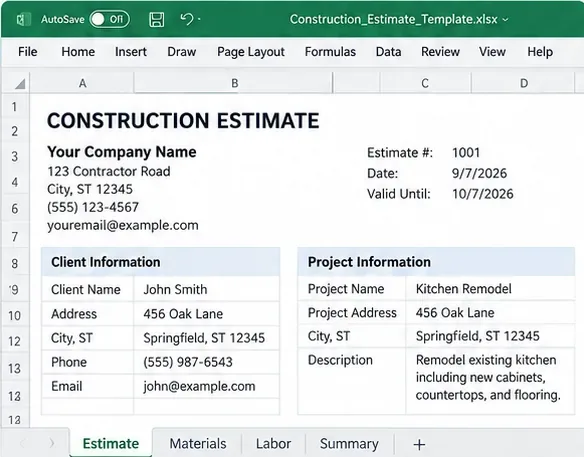
AI-generated illustration of the project-information section of a construction estimate. All company names, addresses, dates, and contact details are fictional examples, not a real Excel workbook.
Step 2: Build the materials table with quantities and unit costs
Create a separate worksheet named Materials, or keep the section below the project header if the estimate is short. Use columns such as:
Item
Description
Quantity
Unit
Unit Cost
Amount
Cabinets
Shaker style, white
10
ea
$150.00
$1,500.00
Countertop
Quartz, 3 cm
40
sq ft
$70.00
$2,800.00
Flooring
Vinyl plank
200
sq ft
$3.50
$700.00
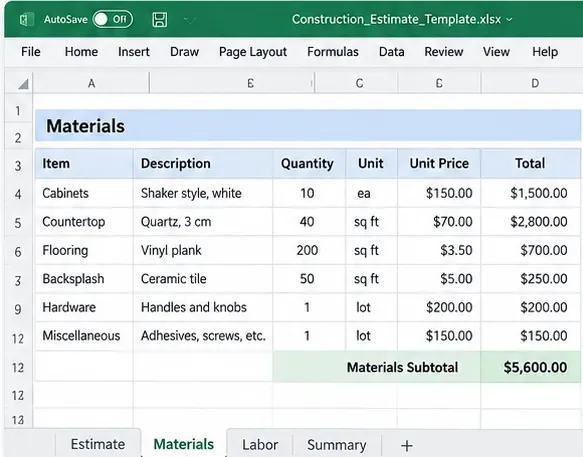
The example numbers above are fictional. Replace them with your supplier quotes, current price lists, or documented estimating data.
Convert this range into an Excel Table with Home → Format as Table. Microsoft’s official Excel Table guide explains that tables are designed to group and analyze related data. Tables are especially useful in an estimate because formulas can automatically extend to new rows.
If you name the table Materials, the Amount formula can use a structured reference:
=[@Quantity]*[@[Unit Cost]]
Microsoft’s structured-reference documentation explains that table and column names adjust as rows are added or removed. This is safer than building a fixed formula that stops at row 25 and accidentally excludes a new material entered on row 26.
For the subtotal outside the table, you can use:
=SUM(Materials[Amount])
Allow for waste deliberately
Materials such as flooring, tile, roofing, trim, and sheet goods may need waste or overage because of cuts, breakage, pattern matching, or minimum purchase quantities. There is no universal waste percentage that is correct for every trade and layout.
If you use a waste factor, show it clearly. For example, if measured flooring is 200 square feet and your job-specific takeoff requires a 7% allowance:
Order Quantity = 200 * (1 + 7%)
That gives 214 square feet. The 7% in this example is illustrative, not a recommended standard.
Beginner mistake to avoid: copying a generic waste percentage from another trade or project without checking dimensions, pattern, package sizes, and supplier rules.
AI-generated illustration of a construction materials estimate. The quantities, unit prices, and subtotal are fictional and should be replaced with current project-specific data.
Step 3: Add labor, subcontractors, equipment, overhead, contingency, and markup
Labor
Labor cost is the estimated cost of the time needed to perform the work. A beginner-friendly table can use:
Task
Description
Hours
Labor Rate
Amount
Demolition
Remove cabinets and flooring
8
$50.00
$400.00
Cabinet installation
Set and secure cabinets
16
$50.00
$800.00
Finishing
Final trim and touch-up
8
$50.00
$400.00
Again, these rates are examples only. Your labor rate may need to cover more than an employee’s hourly wage. Depending on how your company calculates costs, payroll taxes, workers’ compensation, benefits, paid nonproductive time, and other labor burden may be built into the labor rate or handled elsewhere. The important rule is consistency: know what your rate includes so you do not omit a real cost or count the same cost twice.
Use the same row formula:
=[@Hours]*[@[Labor Rate]]
Subcontractors, equipment, permits, disposal, and other direct costs
Direct costs are costs you can reasonably associate with the specific job. Depending on the project, they might include:
subcontractor quotes;
equipment rental;
dumpster or disposal fees;
delivery and freight;
permit or inspection fees;
temporary protection;
job-specific insurance or bond cost where applicable.
Do not invent permit, tax, or bond percentages just to complete the spreadsheet. Use the actual local requirement or a clearly documented allowance.
Overhead
Overhead means costs required to operate the business that are not conveniently assigned to one item of installed work. Examples can include office rent, bookkeeping, estimating, software, general insurance, phones, management time, and vehicles. How you recover those costs is a business pricing decision.
You might apply an overhead rate to an agreed cost base:
Overhead Allowance = Applicable Cost Base * Overhead Rate
Do not copy another contractor’s overhead percentage. Their staffing, insurance, office, equipment, geography, and volume may be completely different from yours.
Contingency
Contingency is an amount included to address uncertainty in the estimated work. DOE’s cost-estimating guidance describes contingency as an amount for uncertainties such as incomplete design or unpredictable conditions and says its basis should be documented.
A contingency should therefore connect to a reason. For example: “Existing wall condition cannot be fully inspected until demolition; estimate includes a stated allowance for minor substrate repair.”
Beginner mistake to avoid: using contingency to cover known work you simply forgot to price. If you know the work is required, put it in the estimate as a real line item.
Markup is not the same as margin
Markup is profit or price increase expressed as a percentage of cost. Profit margin is profit expressed as a percentage of the selling price. They are mathematically different.
If estimated cost is $100 and you add a 20% markup:
Choose the pricing method your business actually uses and label the sheet correctly. A workbook that calls markup “margin” can produce systematic underpricing.
Beginner mistake to avoid: stacking separate overhead, markup, and labor-rate allowances without knowing which costs are already embedded in each rate. Double-counting can make an estimate uncompetitive; omitting them can make a winning job unprofitable.
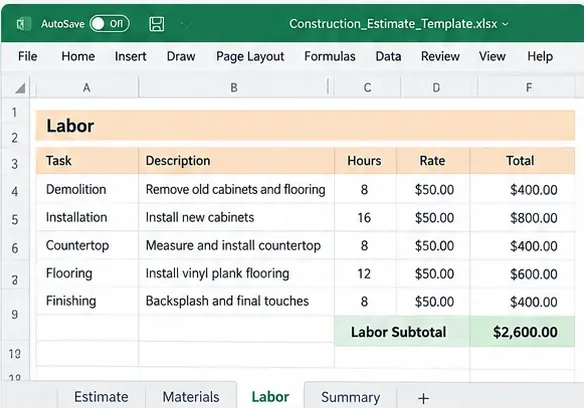
AI-generated illustration of a construction labor estimate. Labor hours and rates are fictional examples; use your own productivity assumptions and fully understood labor-cost basis.
Step 4: Build the estimate summary and make it printable
The customer-facing summary should be easy to audit without exposing every internal business calculation you prefer to keep private. A straightforward internal summary might look like:
Cost section
Example amount
Materials
$5,600.00
Labor
$2,600.00
Subcontractors / equipment / other direct costs
$500.00
Direct-cost subtotal
$8,700.00
Overhead allowance
Calculated from your method
Contingency
Only when justified and documented
Markup / profit
Calculated from your pricing method
Applicable tax
Based on your jurisdiction and taxable items
Estimate total
Final calculated price
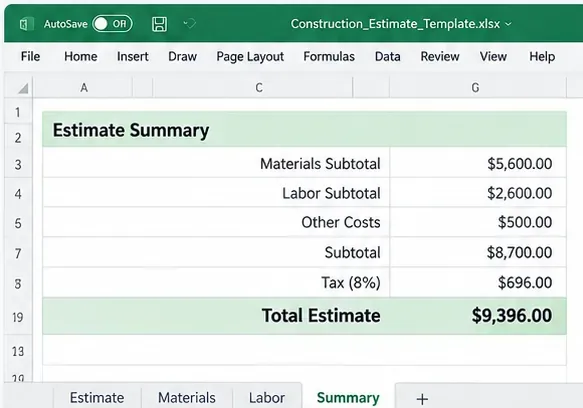
The example image below uses a simplified fictional total and tax line for illustration. Do not copy its 8% tax rate. Construction sales-tax treatment can depend on state and local rules, the type of work, whether materials or services are taxable, and how the transaction is structured. Confirm the rule with the relevant state or local tax authority or your tax professional.
AI-generated illustration of an estimate summary. The $9,396 total and 8% tax rate are fictional examples and are not recommended rates for any jurisdiction.
Set the print area
Select only the customer-facing estimate and use Page Layout → Print Area → Set Print Area. Microsoft’s official Print Area guide explains that Excel saves the defined print area with the workbook and prints only that range unless you override it.
Choose page orientation and scaling
Open Page Layout → Page Setup. Microsoft documents controls for portrait or landscape orientation, paper size, margins, and scaling. For a wide estimate, a useful starting point is Landscape and Fit to 1 page wide while allowing as many pages tall as necessary.
That last part matters. Forcing a 60-line estimate onto one physical page can shrink the text until the “printable template” is technically one page but practically unreadable. Microsoft’s Page Setup documentation explains that you can fit a worksheet to a specified number of pages wide and tall.
Use Print Preview before sending
Open File → Print and inspect the preview. Microsoft recommends previewing a worksheet before printing so you can correct orientation, margins, scaling, and page breaks. See its worksheet printing guide.
Look for:
columns cut off at the right edge;
tiny text caused by excessive scaling;
a total separated from the line items it summarizes;
blank pages caused by an incorrect print area;
notes or exclusions missing from the printed range;
headers that do not repeat when a long estimate spans multiple pages.
Save a PDF copy for the customer
Keep the Excel workbook as your editable estimating file and send a PDF when you want the estimate to retain its intended page layout. Microsoft’s official Office PDF instructions document saving Excel output as PDF for sharing and printing.
Use a revision-friendly filename such as:
EST-2026-014_Smith-Kitchen_Rev1.pdf
If the scope or price changes, issue a clearly numbered revision rather than silently replacing the old file.
Copy-ready workbook structure
A beginner does not need twelve worksheets. Four are enough for many small jobs:
Worksheet
Purpose
Estimate
Customer and project details, scope, assumptions, customer-facing total
Materials
Material quantities, units, costs, waste allowances, totals
Labor & Other
Labor hours/rates, subcontractors, equipment, permits, disposal, other direct costs
Summary
Internal cost roll-up, overhead, contingency, markup/margin method, tax, final price
If your projects are very small, you can combine all four sections on one worksheet. If your work regularly needs many alternates, assemblies, phases, crews, vendor comparisons, change orders, or historical cost databases, a dedicated estimating system may be easier to maintain than continuously expanding the Excel model.
Common mistakes that make a professional-looking estimate unreliable
1. Using one lump sum with no scope detail
A price without enough description leaves room for conflicting expectations. Break work into logical sections and write exclusions.
2. Confusing selling price with cost
A supplier invoice, employee wage, or subcontractor quote is not necessarily the final selling price. Make sure the workbook includes the cost-recovery and profit method your business intends to use.
3. Forgetting small job-specific costs
Delivery, disposal, consumables, temporary protection, equipment, permit fees, travel, and cleanup can be individually modest but meaningful in total.
4. Double-counting overhead
If a labor or equipment rate already contains certain overhead costs, understand that before applying another blanket overhead factor.
5. Treating contingency as guaranteed profit
Contingency addresses uncertainty in the estimate. It should have a basis and should not be confused with your normal profit calculation.
6. Copying someone else’s tax rate
Tax treatment varies by jurisdiction and project type. Keep the rate as an input cell and verify the applicable rule before issuing the estimate.
7. Printing before checking pagination
Excel can scale a wide sheet so aggressively that customers cannot read it. Use Print Preview and prioritize legibility over forcing everything onto one page.
Final beginner checklist before you send the estimate
Does the estimate identify the contractor, customer, jobsite, date, and revision?
Is the scope specific enough that another person can tell what is included and excluded?
Do material quantities match the latest measurements or drawings?
Are supplier and subcontractor prices current enough for the estimate’s validity period?
Does each labor task have a defensible hours and rate assumption?
Have equipment, delivery, disposal, permits, and other direct costs been considered?
Do you know which costs are already included in labor rates or other markups?
Is contingency connected to identifiable uncertainty rather than used as a hidden plug?
Does the formula use markup if you mean markup, and margin if you mean margin?
Has any applicable tax treatment been checked for the project’s jurisdiction?
Does Print Preview show readable text, complete totals, and all scope notes?
Did you save the editable workbook and a clearly named customer PDF separately?
A useful construction estimate is not the one with the most formulas. It is the one you can explain. A beginner-friendly Excel template should let you point from the final price back to the scope, quantities, rates, assumptions, and pricing method without rebuilding the calculation in your head. Start with that transparent structure, print it cleanly, and add complexity only when your jobs genuinely require it.