Home
» Tips
»
How to Fix a Word Document Opening as Read-Only on Mac
How to Fix a Word Document Opening as Read-Only on Mac
There is one current Mac-specific issue worth checking first. Microsoft says that starting July 13, 2026, some Microsoft 365 and perpetual Office users on macOS can enter reduced functionality mode if the required Office update has not been installed. In that state, Word can open and print files but cannot edit, save, or create documents. If every Word file suddenly became effectively read-only—not just one document—update macOS if needed, then update Word before changing individual file permissions.
Microsoft’s current guidance says the required Office updates need macOS 12 Monterey or later. For Office installed from Microsoft, open Word and choose Help → Check for Updates, then install all available updates through Microsoft AutoUpdate and restart Word. If Word came from the Mac App Store, update it through the App Store instead. See Microsoft’s current macOS/iOS Office update notice and Office for Mac update instructions.
If only one document opens read-only while other Word files edit normally, skip the app-wide update diagnosis and focus on that file. The rest of this guide goes from the safest, most likely checks to the more specific permission and protection cases.
Quick diagnosis: is the problem Word-wide or file-specific?
Test
What the result suggests
Best next move
Create a new blank document and type a sentence
If you cannot edit or save it, the problem is probably Word, licensing, or the current Office update state
Start with Step 1
Open a different local .docx file
If that file edits normally, the original document is probably protected, locked, or stored somewhere you cannot write
Start with Step 2
Save the problem file to your local Documents folder under a new name
If the copy is editable, the original location or sharing permission is likely the issue
Check Step 3 and Step 4
Step 1: If all Word files are read-only, update Office and confirm Word is activated
The July 2026 reduced-functionality change is the first thing to rule out when the problem affects many documents at once. Microsoft says affected Office apps can still open and print files while editing, saving, and creating are disabled. That symptom can look exactly like a file-permission problem even though the document itself is fine.
For a Microsoft-installed copy of Word:
Open Word.
From the macOS menu bar, choose Help → Check for Updates.
In Microsoft AutoUpdate, install Update or Update All.
Quit and reopen Word.
If the update cannot be installed because your Mac is on an older unsupported macOS release, use Apple menu → System Settings → General → Software Update and update macOS if your hardware supports it. On a work-managed Mac, the update may be controlled by IT rather than by you.
Also check Word activation. This is especially relevant if Word was installed from the Mac App Store. Microsoft states that the Mac App Store versions of Word, Excel, and PowerPoint require a Microsoft 365 subscription to create and edit documents. A one-time Office license is not compatible with the App Store build; those licenses require the Office apps downloaded directly from Microsoft. See Microsoft’s Mac App Store activation guidance.
Use this fix when: new documents and multiple unrelated files are all non-editable.
Do not use this diagnosis when: Word edits other files normally and only one document is read-only. In that case, updating Word may still be sensible, but it is unlikely to explain the single-file behavior.
Check the result: create a new blank Word document, type a line, and save it. If that works, Word itself has editing capability and you can move to file-specific checks.
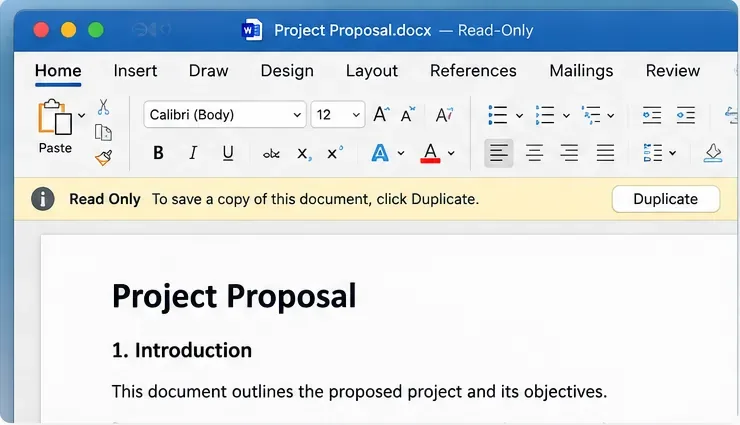
AI-generated illustration of a Word document in a read-only state on Mac. It is not an actual Microsoft Word screenshot, and interface wording can vary by Word version.
Step 2: Check Word’s viewing mode and document-level protection
Word can open a document in Viewing mode even when the file itself is not locked by macOS. Microsoft documents three document modes in current Word for Mac: Viewing, Reviewing, and Editing. If you have edit permission, use the mode selector near the upper-right of the Word window and switch from Viewing to Editing. See Microsoft’s official Word document modes guide.
A document can also have Word-level restrictions. Microsoft documents an Always Open Read-Only setting and editing restrictions that an author can apply to a Word document. On current Word versions, look under the document’s protection options and clear the read-only preference if you are allowed to do so. If the file is protected against modification with a password, Word for Mac supports a separate password-to-modify setting under Review → Protect → Protect Document.
If you do not know a required password, do not try to bypass the protection. Microsoft states that Word cannot recover a forgotten document password. See Microsoft’s Word password-protection documentation.
Use this fix when: the file opens normally but Word shows Viewing/Read-Only behavior, or the document came from someone who may have intentionally restricted editing.
Important distinction: “Always Open Read-Only” is a Word preference for how the document opens. It does not give you edit rights to a OneDrive or SharePoint file that was shared with view-only permission. Microsoft explicitly separates viewing mode from the underlying access permission.
Check the result: switch to Editing if it is available, type a harmless test character, then undo it and save. If Editing is unavailable or saving is still blocked, move on to macOS file permissions.
Step 3: Check Finder’s Locked flag and your Read & Write permission
macOS has its own file-level controls. A Word document can be locked in Finder or stored in a location where your Mac user has only read permission.
First check the file itself:
Quit Word or close the document.
In Finder, select the .docx file.
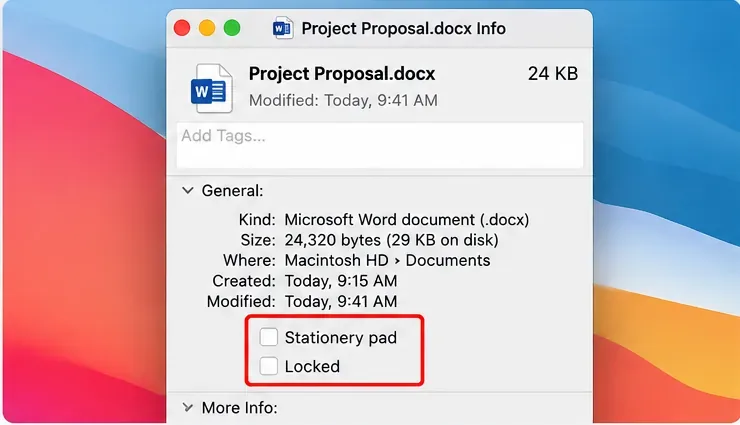
Choose File → Get Info or press Command-I.
Under General, make sure Locked is not selected.
Expand Sharing & Permissions and confirm your user has Read & Write access.
If the file itself says Read & Write but Word still cannot save it, inspect the folder containing the file as well. Saving often requires permission to modify the directory, not merely permission to read the existing document.
Use this fix when: a local file is read-only, especially after being copied from another Mac user account, restored from backup, moved from a shared folder, or stored on external media.
Do not change permissions broadly: avoid using “Apply to enclosed items” on large system or shared folders unless you understand the consequences. Change the specific document or folder that actually needs writable access.
Check the result: reopen the document and try a normal Save. If it still fails, use Save As to a folder you definitely own, such as your personal Documents folder.
AI-generated illustration of the Finder Get Info window and its Locked setting. It is not a captured macOS screen; use the actual Get Info panel on your Mac to verify the setting.
Step 4: If the file is shared or stored somewhere read-only, request edit access or save a local copy
OneDrive, SharePoint, and Teams documents have their own sharing permissions. Microsoft says a user with Can view permission can read the file but cannot change it, while Can edit grants editing rights. Word cannot override a view-only sharing permission just because the desktop app is installed on your Mac.
If the document belongs to someone else, open the sharing or access information and check whether you have edit rights. If you only have view permission, ask the owner to grant Can edit. Microsoft documents these controls in its OneDrive and SharePoint permissions guide.
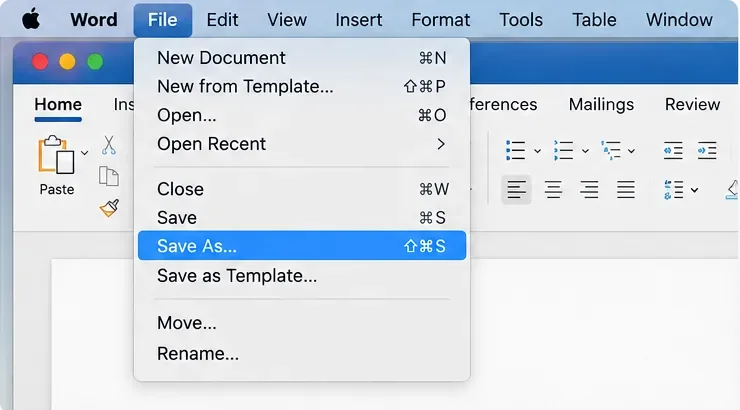
If you do not need to modify the shared original, use File → Save As and create a separate copy in a location where you have write permission. This is appropriate when the original is intentionally read-only and you only need your own editable version. It is not appropriate when your organization requires edits to stay in the controlled shared file.
AI-generated illustration of using Save As in Word for Mac. Menu appearance can differ by Word release; the image is a visual guide, not a real Microsoft screenshot.
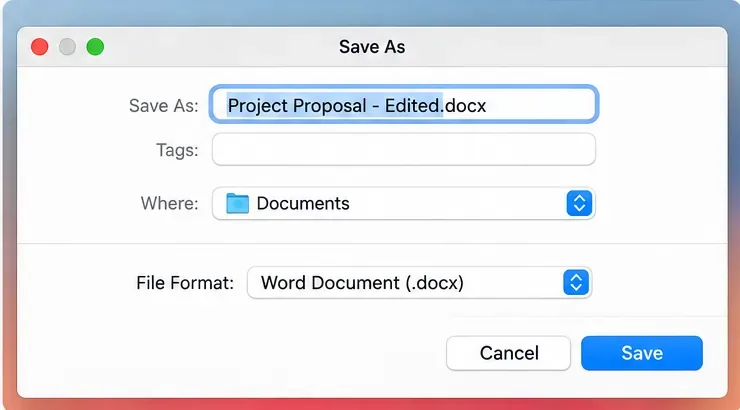
Choose a new name and a writable folder, then save the copy:
AI-generated illustration of saving a Word document copy under a new name. The filename and folder shown are fictional examples.
Use this fix when: the original is shared as view-only, belongs to someone else, or is stored in a location where you cannot write.
Check the result: close the original, open the new local copy, edit a sentence, and save. If the copy works, Word is functioning and the original file or location is the restriction.
Special case: the file is on an external drive
If a Word document is stored on an external disk, the disk format can matter. Apple notes that NTFS drives are read-only on Mac for normal macOS use, so you may be able to open a document from the disk but not save changes back to the same location. Apple documents this behavior in its Mac file-copy troubleshooting guide.
A simple test is to copy the Word document from the external drive to your Mac’s Documents folder and open the copy. If it becomes editable, the storage volume—not Word—is probably the limiting factor.
Do not reformat a drive just to fix one Word document unless you have confirmed the file system is the issue and backed up the drive first. Reformatting erases data.
Special case: the file has a password to modify
Word for Mac allows an author to set one password for opening a document and another for modifying it. A file can therefore open successfully yet still refuse editing unless the modification password is supplied.
If you own the document and know the password, remove or change the protection through Word’s protection settings and save the file. If someone else owns it, ask them for an editable version or the required permission. Microsoft warns that Word cannot retrieve a forgotten document password.
What not to do first
A read-only document usually does not justify deleting Word preferences, reinstalling Office, changing macOS security settings globally, or using Terminal commands to recursively modify file permissions. Those actions can create new problems while leaving the original cause untouched.
Use the symptom to choose the fix:
All Word files are non-editable: check the July 2026 Office update requirement, app version, and activation.
Only one file is affected: check Word mode, document protection, Finder Locked, and permissions.
Only shared cloud files are affected: check Can view versus Can edit access.
Only files on one external disk are affected: check the disk’s format and permissions.
A local copy edits normally: the original location or access rule is the likely cause.
Final verification checklist
Once you think the problem is fixed, verify it rather than assuming that the absence of a read-only banner means everything is writable:
Create a new blank document, type a sentence, and save it.
Open the problem document and confirm Word is in Editing mode when you have edit permission.
Check Finder Get Info: Locked should be off, and your user should have Read & Write access when local editing is intended.
If the document is on OneDrive or SharePoint, confirm you actually have Can edit permission.
Edit a harmless word, save, close Word, reopen the document, and confirm the change persisted.
If a new local document is editable but the original still is not, the remaining cause is almost certainly specific to that document, its protection settings, its owner’s sharing permissions, or its storage location. If even a new blank document cannot be edited or saved after Word is updated, signed in, and activated, use Microsoft Support or your organization’s IT team rather than changing individual file permissions repeatedly.