Home
» Tips
»
How to Export Salesforce Contacts to a Clean Excel Format Without Breaking IDs or Phone Numbers
How to Export Salesforce Contacts to a Clean Excel Format Without Breaking IDs or Phone Numbers
You export Contacts from Salesforce, open the file in Excel, and immediately notice problems: ZIP codes lose leading zeros, long IDs look like numbers, dates change format, duplicate-looking contacts appear, or the spreadsheet contains more columns than anyone can use. The export itself may be fine—the damage often happens when Excel automatically guesses data types or when the export was built without a stable record key.
The safest workflow is to export a detail-level Salesforce report to CSV, keep the raw CSV untouched, and import it into Excel with Data > From Text/CSV so you can explicitly set identifiers, phone numbers, and postal codes to Text before loading. Then clean a copy, deduplicate by Salesforce Contact ID rather than email alone, and save the finished workbook as .xlsx.
This guide reflects Salesforce and Microsoft documentation checked on September 11, 2026. Salesforce published an updated contact-export help article on August 18, 2026 that directs users to a report with Contacts as the primary object. Exact report types and fields can still vary by org configuration, permissions, installed products, and whether your organization already has a suitable Contacts report type.
Why a Salesforce export can look messy in Excel
Three different systems are involved: Salesforce decides which records and fields to export, CSV stores those values as delimited text, and Excel decides how to interpret them when you open or import the file. That last step is where many “Salesforce export problems” are actually introduced.
Salesforce documented this explicitly in June 2026 for leading zeros: its export can contain a value such as 01234 correctly, but Excel may interpret that column as numeric and display 1234. Microsoft likewise warns that automatic conversion can remove leading zeros, turn long numeric strings into scientific notation, and interpret date-like text as dates. See Salesforce's guidance on leading zeros in Excel exports and Microsoft's Excel data import and analysis options.
Practical rule: do not judge the CSV by what happens after double-clicking it in Excel. Import it with controlled data types first.
Step 1: Build a Contacts report with only the fields you need
Salesforce's current contact-export article says to create a Custom Report Type with Contacts as the primary object, then create a report from that type. A report type defines which records and fields are available to reports. Salesforce also has documentation showing contact-capable report types such as Contacts & Accounts in some workflows, so if your org already exposes a suitable report type, you can use it instead of creating another one.
Select the Contacts report type you created or the appropriate existing contact report type.
Start the report and set the record scope to the contacts you actually need. Salesforce's current contact-export article uses All Contacts.
Add the fields you need and remove decorative or irrelevant fields.
Run the report and inspect several rows before exporting.
A clean general-purpose export usually includes:
Field
Why keep it
Recommended Excel type
Contact ID
Stable Salesforce record key for matching and deduplication
Text
First Name
Keeps names structured
Text
Last Name
Keeps names structured
Text
Account Name
Provides organization context
Text
Title
Useful for segmentation
Text
Email
Contact channel; not a guaranteed unique key
Text
Phone / Mobile Phone
Identifiers, not numbers for arithmetic
Text
Mailing Street / City / State / Postal Code / Country
Keeps address components reusable
Text
Owner
Useful when handing the file to sales or operations
Text
Last Modified Date
Helps determine export freshness
Date/Time
Include Contact ID whenever the report type exposes it. Salesforce says every record has a unique ID generated at creation, and that ID remains the record's identifier even after delete-and-undelete. Salesforce also documents adding the object-specific Record ID field to reports. See Salesforce's Record ID guidance.
Step 2: Export Details Only as CSV
Run the report, open its export action, and choose Details Only. For this workflow, choose .csv rather than a formatted report. Salesforce describes Details Only as an export of each row without report formatting, which is appropriate when you plan to calculate or reshape the data in a spreadsheet. See Salesforce's Export a Report documentation.
CSV is useful here for two reasons. First, Excel lets you control the data types during import. Second, Salesforce documented in May 2026 that Long Text Area and Rich Text Area fields can be truncated to 255 characters in formatted exports and in Details Only XLSX exports, while Details Only CSV is the recommended option when full long-text content is required. This may not matter for a simple First Name / Last Name / Email export, but it matters when your Contacts object has custom long-text fields. See Salesforce's long-text export guidance.
Keep the downloaded CSV as your raw source. Do not clean, reorder, or delete rows in the only copy. Rename it something descriptive, such as salesforce_contacts_raw_2026-09-11.csv, and make the Excel workbook the cleaned derivative.
Step 3: Import the CSV into Excel instead of double-clicking it
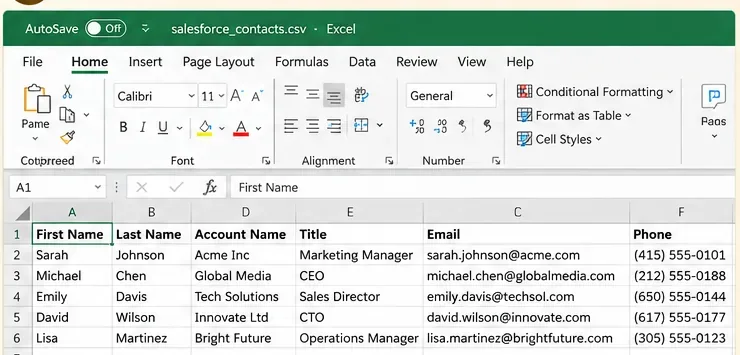
AI-generated Excel-style illustration of imported contact data. It is not a real Microsoft Excel screenshot and is not evidence of a Salesforce export result.
In modern Excel for Windows, use:
Data > From Text/CSV > select the Salesforce CSV > Transform Data
Microsoft recommends the Text/CSV import path when you need control over column types. Power Query—the data-import and transformation tool built into current Excel versions—can detect columns automatically, but you can override those guesses before loading the data. See Microsoft's CSV import instructions and Microsoft's Power Query import guidance.
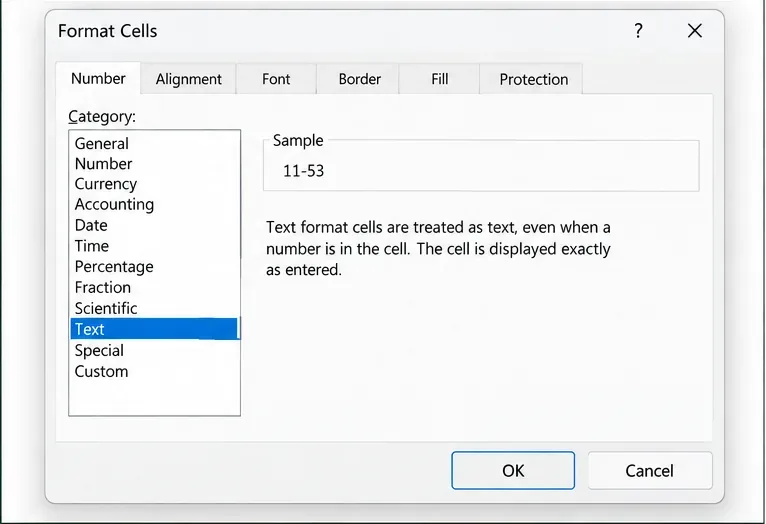
Set these columns to Text before loading:
Contact ID and any other Salesforce record IDs
Phone and Mobile Phone
Postal Code
Employee, customer, membership, or external IDs that can contain leading zeros
Any field that looks numeric but is actually an identifier
Set genuine date/time fields to Date or Date/Time only after checking the source format and locale.
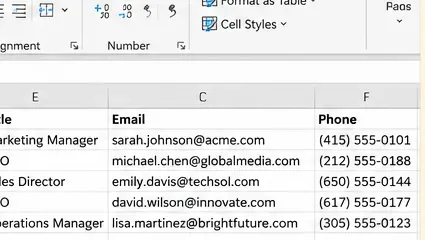
AI-generated illustration highlighting contact fields that should generally remain text. Phone formatting in real Salesforce data can vary by country and organization.
Why phone should stay Text: a phone number is an identifier, not a value you add or average. Converting it to a number can strip a leading zero, discard a plus sign, or otherwise change its representation.
Microsoft specifically recommends importing columns as Text when leading zeros or long numeric strings matter. In current Excel for Microsoft 365 and Excel 2024, Automatic Data Conversion settings can also disable some automatic conversions, but the Text/CSV import workflow is easier to audit column by column. See Microsoft's guidance on preserving leading zeros and long values.
Step 4: Clean the data without destroying the raw values
Once the columns have safe data types, clean for usability rather than cosmetic perfection.
Trim accidental whitespace
Names, job titles, account names, and addresses sometimes contain leading or trailing spaces. Power Query includes text transformations such as Trim and Clean; Excel also provides TRIM and CLEAN worksheet functions. Microsoft explains that TRIM removes ordinary extra spaces and CLEAN removes nonprintable control characters. See Microsoft's TRIM function documentation and Microsoft's Power Query Text.Clean reference.
Do not overwrite original phone numbers just to make them look uniform
If all contacts belong to one country and your organization has a defined phone standard, you can normalize a copy. If the file contains international contacts, a visual format such as (555) 123-4567 can be wrong or destructive. Keep Phone Raw and, if needed, create a separate Phone Normalized column.
Keep First Name and Last Name separate
If Salesforce already exports separate fields, do not merge them into one Name field unless the destination specifically requires it. Separate fields are easier to sort, match, personalize, and re-import.
Remove columns only from the cleaned copy
A clean Excel file should be easy to read, but “clean” does not mean “delete everything unfamiliar.” Remove fields only when you know they are not needed by the workbook's audience or downstream process.
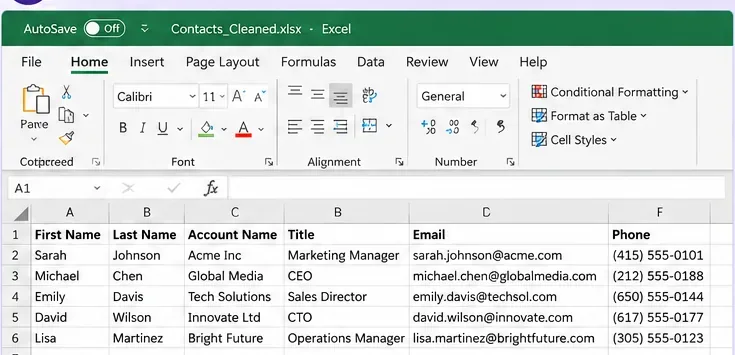
AI-generated illustration of a cleaned contact worksheet with structured columns; actual Salesforce field names depend on your org.
Step 5: Handle duplicates carefully
Do not deduplicate Salesforce contacts by email alone unless your business rules explicitly define email as unique. Shared inboxes, spouses, generic department addresses, intentional duplicate records, and blank email fields can all produce false matches.
For an export of Salesforce Contact records, the safest first duplicate check is Contact ID. If the same Contact ID appears twice unexpectedly, investigate why the report or join produced duplicate rows. Then separately highlight possible business duplicates using combinations such as:
Email + Account Name
First Name + Last Name + Account Name
Phone + Account Name
Excel can highlight duplicates with Conditional Formatting, or permanently delete duplicates using Data > Remove Duplicates. Microsoft recommends reviewing or copying the original data before deletion because Remove Duplicates permanently deletes duplicate rows from the selected range. See Microsoft's duplicate-data guidance.
Recommended process: highlight first, investigate second, remove only after you know the matching rule is valid.
When the report method is not enough
A report is the easiest method when a person wants a readable subset of Contacts and specific fields. Use a different method when the requirement changes.
Need
Better choice
Why
A clean list for Excel analysis
Report → Details Only CSV
Easy field selection and filtering
A broad org backup
Salesforce Data Export
Produces CSV files for selected objects or the org's data
Programmatic or highly filtered object exports
Data Loader / API
Better for repeatable object-level extraction and SOQL-style filtering
More rows than a worksheet can hold
Power Query/Data Model, database, or another analytical tool
Excel worksheets have a finite row limit
Salesforce's Data Export service is designed as a broader backup mechanism and can generate ZIP archives containing CSV files. Depending on edition, exports can run weekly or monthly. It is useful for backup, but it is usually excessive when the task is “give me a clean Contacts spreadsheet.” See Salesforce's Data Export documentation.
Also watch the Excel worksheet limit. Salesforce noted in a May 2026 help article that very large Data Export CSV files can exceed Excel's approximately 1,048,576-row worksheet limit. If your contact dataset approaches that scale, a normal worksheet is no longer the right target format. See Salesforce's large-export guidance.
Save the clean result as XLSX
After loading and cleaning the query output, save the working file as an Excel workbook such as salesforce_contacts_clean_2026-09-11.xlsx. Keep the original CSV beside it or in a controlled source-data folder.
A practical workbook can contain:
Contacts_Clean — the final readable contact table
QA — duplicate counts, row counts, missing-ID checks, and notes
README — export date, Salesforce report name, filters used, and who created the extract
If you use Power Query, keeping the query makes the cleanup repeatable: replace or point to a newer CSV, refresh the query, and reapply the same transformations instead of manually cleaning every export.
Final self-check: how to know the Excel file is actually clean
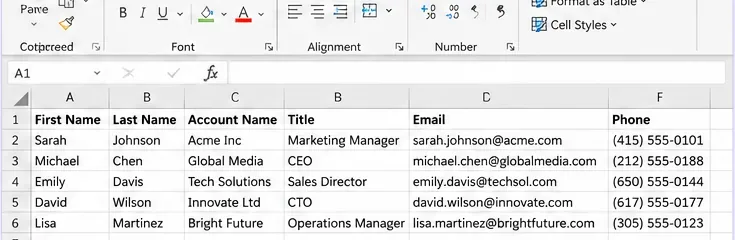
AI-generated illustration of a final verification view. Validate the real workbook against the real Salesforce report rather than relying on an illustration.
Before sharing the workbook, verify it systematically:
Check
Pass condition
Row count
The cleaned file has the expected number of records after any documented removals
Contact ID
Present where required, stored as Text, and not silently converted
Leading zeros
Postal codes and other identifiers retain significant zeros
Phone
Stored as Text; no country prefixes or leading zeros were lost
Dates
Parsed using the intended locale and displayed consistently
Duplicates
Duplicate rules are documented; no rows were deleted merely because emails matched
Sample comparison
At least several records match Salesforce field-for-field
Columns
Only needed fields remain in the cleaned view, while the raw source is preserved
File format
Final working file is saved as .xlsx; original CSV remains unchanged
For an especially important export, compare a small random sample of Contacts in Salesforce against the finished Excel rows. Check Contact ID, name, account, email, phone, postal code, and one date field. This catches the class of errors that formatting alone cannot reveal.
Common mistakes to avoid
Double-clicking the CSV before protecting text fields. Excel may perform automatic conversions.
Using a formatted Salesforce report when you need row-level data. Details Only is cleaner for analysis.
Leaving out Contact ID. You lose the strongest record-level key for tracing a row back to Salesforce.
Using email as the only deduplication key. Email is useful, but it is not guaranteed to identify exactly one Contact.
Overwriting the only raw export. Keep the original CSV unchanged.
Deleting “duplicate” rows before reviewing them. Excel's Remove Duplicates is destructive to the selected range.
Assuming every org has identical report types. Salesforce configuration and permissions can change what appears in the UI.
The cleanest Salesforce-to-Excel workflow is therefore less about formatting and more about preserving meaning: export the right rows, include a stable Salesforce ID, import the CSV with deliberate data types, clean without overwriting raw values, and verify the result against Salesforce before anyone relies on it. Once that process is saved as a Power Query workflow, future contact exports become far more repeatable than manually repairing a spreadsheet after Excel has already guessed the wrong types.