Home
» Tips
»
How to Convert PDF to Editable Word Without Losing Formatting
How to Convert PDF to Editable Word Without Losing Formatting
The best way to preserve formatting is to avoid converting the PDF at all if the original Word file still exists. Microsoft recommends editing the original Office document and creating a new PDF from it when possible. A PDF is a fixed-layout format: it stores where text, images, and vector objects appear on a page, but it does not always preserve the logical structure Word needs for paragraphs, tables, columns, footnotes, and flowing text. Any PDF-to-Word converter has to reconstruct that structure, so “zero formatting loss” cannot be guaranteed.
If the source file is gone, choose the conversion method based on the PDF. For a mostly text-based PDF, opening it directly in desktop Word is usually the fastest route. For a scanned PDF or a layout-heavy document, Adobe Acrobat gives you more control over OCR and layout-preservation options. After conversion, always verify the Word file page by page before treating it as final.
Quick decision table
Your PDF
Best first method
Why
Main limitation
Mostly text, simple headings and paragraphs
Open directly in Word
Fast and built into desktop Word
Line and page breaks can move
Complex layout, sidebars, multiple columns, many images
Acrobat export to DOCX
Offers layout-oriented export controls
May create text boxes or fragmented editable regions
Scanned document or image-only PDF
OCR first, then convert
Creates editable/searchable text from page images
OCR can misread characters, numbers, and punctuation
Tables are the most important content
Test both Word and Acrobat on 2–3 pages
Table reconstruction quality varies by PDF structure
No converter can guarantee perfect cell relationships
Original .docx is available
Edit the original .docx
Best chance of keeping styles, fields, page layout, and structure intact
Not possible if the source file is unavailable
Method 1: Open a text-heavy PDF directly in Word
Microsoft Word can open a PDF and convert a copy into an editable Word document. Microsoft says this works best with PDFs that are mostly text, such as business, legal, or scientific documents. The original PDF is not changed.
Use desktop Word:
Open Word.
Choose File → Open.
Select the PDF.
Accept the message explaining that Word will convert a copy.
After conversion, choose File → Save As and save the result as .docx.
You care more about editability than exact page-for-page matching.
You want a fast conversion without a separate PDF application.
What Word may not preserve well
Microsoft explicitly warns that the converted Word document may not look exactly like the PDF. Known problem areas include tables with cell spacing, page colors and borders, tracked changes, frames, footnotes spanning multiple pages, endnotes, PDF bookmarks, PDF tags, comments, and some font effects. If Word interprets a page as mostly graphics, the page may appear as an image and its text may not be editable.
Practical action: convert two or three representative pages first. If headings, tables, and page breaks are already badly reconstructed, do not convert the entire document and hope the later pages will improve.
Method 2: Use Acrobat when layout preservation matters more
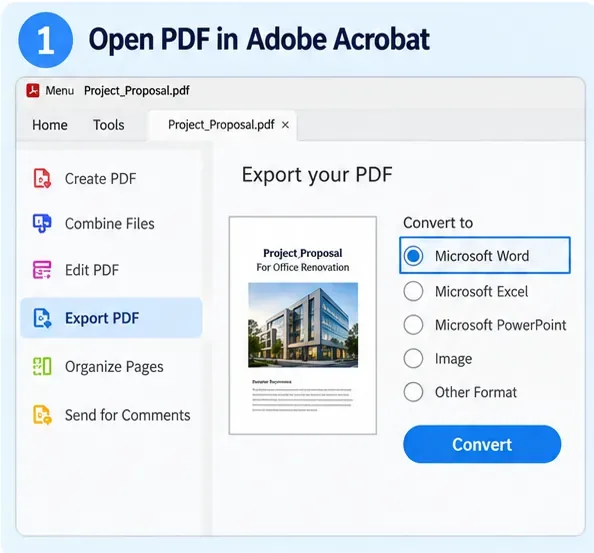
Adobe Acrobat can export a PDF to Microsoft Word formats such as DOCX. Adobe’s current desktop instructions use the Convert workspace, where you choose Microsoft Word and then DOCX or DOC. See the official Acrobat PDF-to-Word instructions.
AI-generated illustration of opening a PDF and choosing a Word export workflow in Acrobat. It is not a real Acrobat screenshot; current menu placement can differ by version.
The basic workflow is:
Open the PDF in Acrobat.
Choose Convert.
Select Microsoft Word.
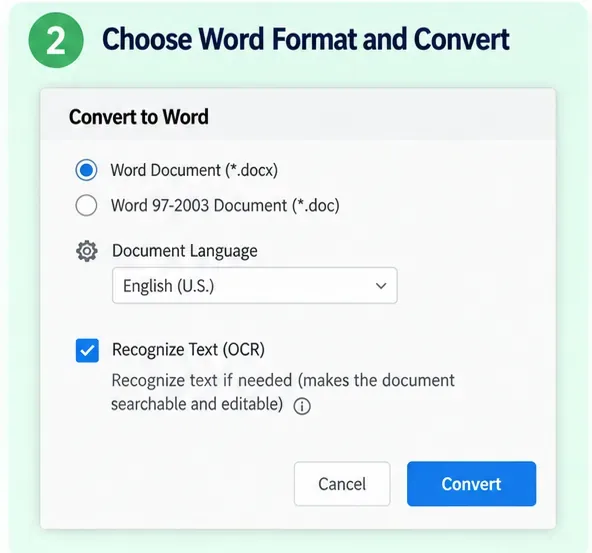
Choose DOCX for a modern editable Word document.
Review conversion settings when available.
Convert and save the Word file.
Adobe documents two useful layout priorities in Acrobat export settings:
Retain Flowing Text: prioritizes editable text that wraps and flows more naturally in Word.
Retain Page Layout: prioritizes keeping the converted document visually close to the PDF page layout, even if that means splitting content into separate text boxes or groups.
Choose Retain Flowing Text when: you expect to rewrite paragraphs, insert sections, or let text reflow across pages.
Choose Retain Page Layout when: matching the original visual placement is more important than having one clean continuous text flow.
There is no universally better choice. A highly designed brochure may look closer to the PDF with page-layout retention but be awkward to edit because text is broken into positioned blocks. A plain report may be easier to maintain with flowing text even if some page breaks move.
Method 3: Run OCR for scanned PDFs before expecting editable text
A scanned PDF may contain only images of pages. In that case, the converter first needs OCR—optical character recognition—to turn visible letters into machine-readable text.
Adobe’s current Acrobat documentation says scanned PDFs contain image data and that Scan & OCR → Recognize Text can create a searchable text layer. Adobe recommends choosing the correct page range and document language, then reviewing the OCR result for accuracy. See Recognize text in scanned PDFs with Acrobat.
AI-generated illustration of selecting DOCX and OCR-related options. It is not a literal current Acrobat dialog; use the current Convert and Scan & OCR controls in your installed version.
For scanned documents, the safest sequence is:
Keep a backup of the original PDF.
Run OCR using the correct document language.
Search for a few known words or names to confirm that the text layer is usable.
Inspect dates, invoice numbers, addresses, and other high-risk characters.
Export the OCR-processed PDF to DOCX.
Why language matters: OCR engines use language models and character expectations. Choosing the wrong language can increase errors in accented characters, punctuation, and word recognition.
Practical action: if a scan contains important account numbers, prices, legal clauses, or technical values, compare those fields against the original image manually after OCR. A Word file that looks visually correct can still contain incorrect recognized text.
Method 4: Open the DOCX and repair structure before editing heavily
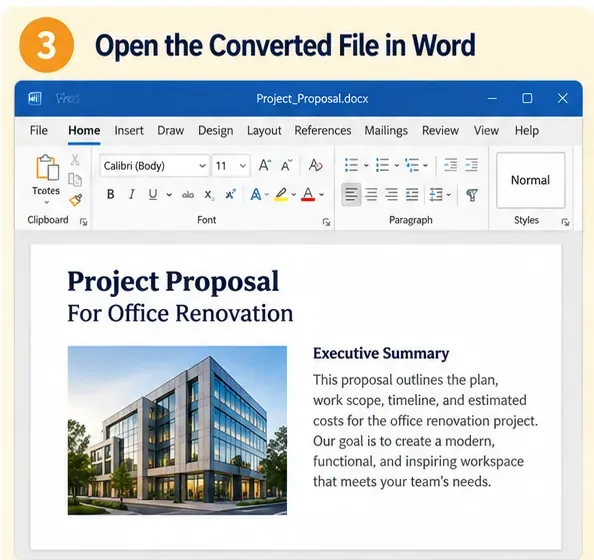
After conversion, resist the urge to start rewriting immediately. First determine whether Word reconstructed the document as a usable document or as a collection of positioned objects.
AI-generated illustration of a converted DOCX opened in Word. It is not a real conversion result and does not imply that every PDF will preserve this level of layout fidelity.
Check these areas in order:
Check
What to look for
When to repair
Page count
Unexpected extra or missing pages
Before editing body text
Headings
Headings converted as normal paragraphs
Apply proper Word styles if the file will be reused
Tables
Split cells, missing borders, columns out of alignment
Rebuild important tables rather than patching dozens of broken cells
Columns
Text reading in the wrong order
Consider section columns or a rebuilt layout
Images
Wrong wrapping or shifted placement
Reset wrap and anchor behavior
Headers/footers
Repeated text inserted into the body
Move content into real Word header/footer areas
Footnotes
Footnotes turned into body text
Recreate as actual Word footnotes when needed
Fonts
Substituted typeface or unexpected spacing
Install the licensed font if available or choose a stable replacement
For documents you will edit repeatedly, convert formatting into Word-native structure wherever possible. That means real heading styles instead of manually enlarged text, real tables instead of tab-separated columns, real page breaks instead of dozens of blank lines, and real headers and footers instead of text placed at the top and bottom of every page.
Why formatting shifts after PDF conversion
Microsoft gives the clearest explanation: PDF is a fixed format. It stores page coordinates for text, graphics, and images, but does not necessarily store “this is a paragraph,” “this is a table,” or “this is a two-column section” in the way Word needs to edit content.
A converter therefore has to infer structure. Two visually identical PDFs can be internally very different. One may contain clean text blocks and tagged structure; another may contain dozens of individually positioned text fragments. They can look the same in a PDF viewer but convert very differently.
This is why a formatting problem is not always evidence that the converter is defective. Sometimes the source PDF simply does not contain enough structural information to reconstruct the original Word document exactly.
When should you use Word versus Acrobat?
Priority
Use Word first
Use Acrobat first
Fastest conversion of a text-heavy PDF
Yes
Optional
Scanned document needing OCR
Possible, but test carefully
Preferred when you need explicit OCR controls
Need layout-retention choices
Limited
Better fit
Need a highly editable flowing document
Good for simple text PDFs
Use flowing-text export option
Need the page to look as close as possible to the PDF
Test first
Try page-layout retention
Need only a few paragraphs from the PDF
Copy or open in Word
Full conversion may be unnecessary
Formatting problems and the least-destructive fixes
Pages break in different places
Microsoft warns that line and page breaks may change after conversion. Do not force the old pagination with repeated blank lines. Use paragraph spacing, Keep with next, Keep lines together, and manual page breaks only where the structure requires them.
A table turns into ordinary text
If the table is important, rebuilding it as a real Word table may be faster and more stable than trying to align converted text with spaces or tabs. This is especially true for tables with merged cells, unusual spacing, or multiple header levels.
The whole page becomes one image
Microsoft says this can happen when a PDF contains mostly graphics. If the underlying document is a scan, use OCR. If it is genuinely a graphic-heavy page, you may need to recreate the editable text manually or preserve that page as an image.
Fonts change
A PDF may contain embedded or subsetted fonts that are not installed on your computer. The converter may substitute another font. If you are licensed to use the original font, install it and replace the substituted font in Word. Otherwise, use a visually similar typeface and expect some text reflow.
Comments or markup behave differently
Microsoft lists PDF comments and tracked-change-related content among elements that may not convert cleanly. Adobe says comments can be exported as text boxes in some conversion workflows. If review history is important, keep the original PDF alongside the DOCX for reference.
If exact appearance matters more than editability
Sometimes the requirement is misunderstood. If the document only needs a few textual changes but must remain visually identical, full conversion to Word may not be the best workflow. Editing the PDF in a PDF editor can preserve the fixed page layout better than converting the entire file into Word.
If the requirement is the opposite—large-scale rewriting, collaboration, styles, tracked changes, and future revisions—accept that some layout reconstruction may be necessary. A Word document designed for editing behaves differently from a PDF designed to freeze appearance.
Save safely after conversion
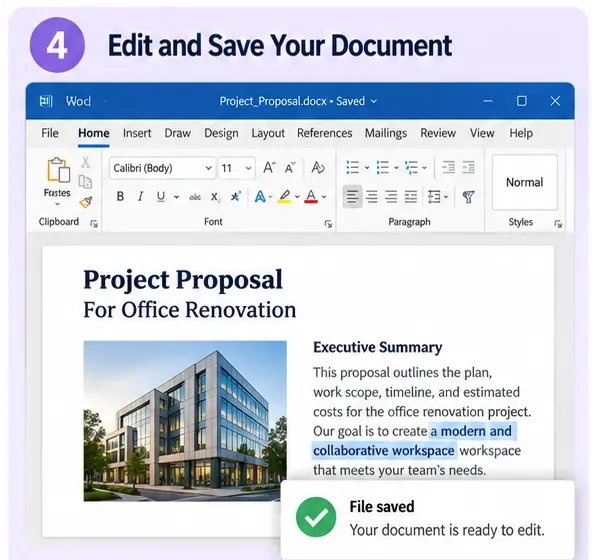
Once the DOCX is clean enough to use, save it with a new filename rather than overwriting other project files. Keep the original PDF as the visual reference.
AI-generated illustration of editing and saving a converted Word document. It is a conceptual example, not proof that a specific PDF will convert without manual cleanup.
A useful file naming pattern is:
Original:
Project-Proposal.pdf

Converted working file:
Project-Proposal_converted.docx

Cleaned final Word file:
Project-Proposal_editable-final.docx
This keeps the fixed original, the raw conversion, and the cleaned document separate. If formatting breaks during later editing, you still have a reference copy.
Final quality-control checklist
Before sending or replacing the original, compare the PDF and Word document side by side:
Are all pages present and in the correct order?
Do headings use the correct hierarchy and numbering?
Are tables complete, with the right row and column relationships?
Are footnotes, endnotes, captions, and cross-references still meaningful?
Are headers, footers, page numbers, and section breaks correct?
Do images and captions still belong together?
Have fonts been substituted?
Are hyperlinks still valid?
For OCR documents, have names, numbers, dates, and amounts been checked character by character?
Does Word’s Print Preview look acceptably close to the original PDF?
If the converted document fails several of these checks, switch methods rather than spending hours patching a poor conversion. A text-first PDF may convert better in Word; a scan or layout-heavy PDF may do better through Acrobat with OCR and layout settings; and a document with extreme design complexity may be faster to rebuild selectively.
Bottom line
There is no converter that can promise an editable Word document with zero formatting loss for every PDF. Microsoft itself explains why: PDF stores a fixed visual result, while Word needs editable document structure. The best workflow is therefore to choose the method that matches the source.
Use the original Word file if it exists. Use desktop Word for mostly text-based PDFs. Use Acrobat when you need OCR or stronger control over page-layout versus flowing-text conversion. Then repair Word structure, verify the result against the original PDF, and keep both files until the converted document has passed a page-by-page check.