Home
» Tips
»
Free Small Business Invoice Template for Excel with Automated Sales Tax Calculation
Free Small Business Invoice Template for Excel with Automated Sales Tax Calculation
The safest “automated sales tax” invoice in Excel is one that automates the arithmetic but makes the tax rules visible. Excel can calculate line totals, taxable subtotals, tax, and invoice totals reliably, but it cannot decide on its own which items are taxable or which rate applies to a customer. Those inputs depend on the transaction and the applicable state and local rules.
For a small business that sells in one or a few familiar jurisdictions, a simple Excel workbook can be a practical free invoicing system. For a business selling across many states, handling exemption certificates, shipping to many localities, or dealing with product-specific taxability, a spreadsheet becomes harder to maintain safely. The best setup depends less on invoice volume than on how complicated your tax rules are.
This template uses current Microsoft Excel features such as Tables, structured references, data validation, formulas, printing, and PDF export. The tax examples below are intentionally generic. Before entering a rate, verify it with the tax authority that governs your sale.
Quick choice: which sales-tax setup fits your business?
Setup
Best for
Main advantage
Main tradeoff
One verified rate per invoice
Local service or retail businesses with one destination/rate per invoice
Simple, easy to audit
You must enter the correct rate for each transaction
Rate drop-down from a small lookup list
Businesses repeatedly selling in a few known jurisdictions
Faster, more consistent data entry
The rate list must be maintained when tax rates change
Per-line tax rate
Invoices with genuinely different tax treatment by line
Flexible
More chances for data-entry and formula errors
Accounting/tax engine instead of Excel
Multistate sales, many ship-to addresses, exemptions, marketplace/e-commerce complexity
Better automation and rule management
Higher cost and setup effort
If you are unsure, start with one verified rate per invoice plus a Taxable? field on every line item. It keeps the workbook understandable and avoids applying tax blindly to exempt or non-taxable items.
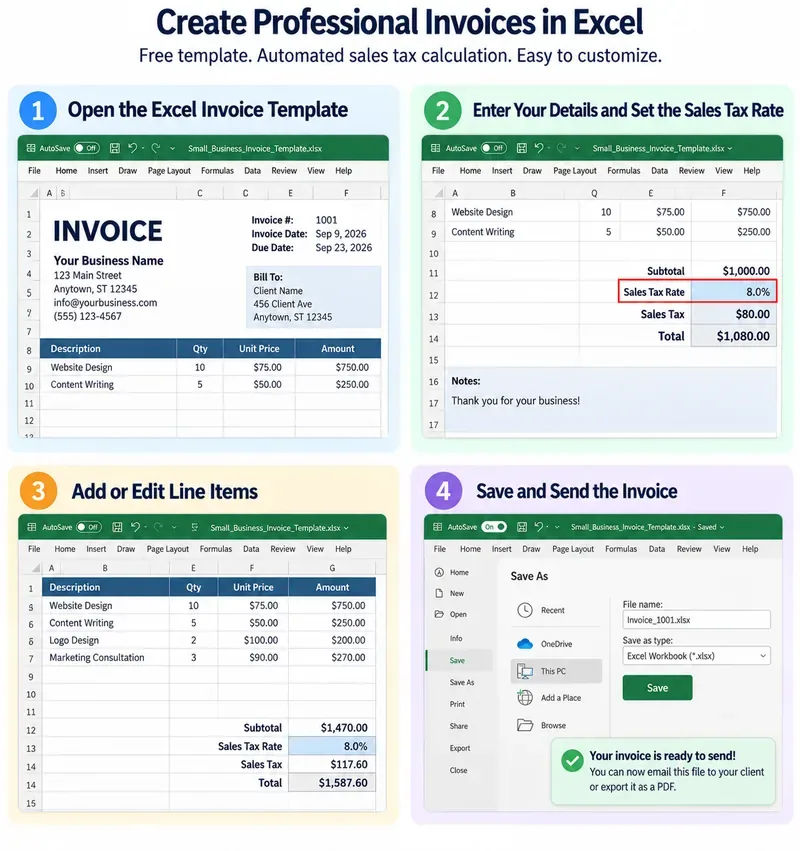
AI-generated illustration of a small-business Excel invoice workflow. The business details, prices, dates, and 8% tax rate are fictional examples only; verify the actual taxability and rate for each transaction with the appropriate tax authority.
Why you should not hard-code one tax rate into every invoice
Sales tax is not a single nationwide U.S. rate. State and local rules can affect both the rate and what is taxable. California’s current tax-rate page, for example, lists rates by city and county and notes that local district taxes can raise the total rate above the statewide base rate. The California Department of Tax and Fee Administration also publishes effective dates because local rates change over time. See the California City & County Sales & Use Tax Rate Information.
Taxability can differ as well. New York’s Department of Taxation and Finance states that tangible personal property is generally taxable unless exempt, while many services are generally exempt unless specifically taxable. See New York’s official taxable products and services guidance.
Those examples are not rules for every state. They demonstrate why a spreadsheet should make the tax rate and taxable base explicit rather than hiding them inside an opaque formula.
Recommended workbook structure
You can keep the entire system in two worksheets:
Worksheet
Purpose
Invoice
Customer-facing invoice, line items, tax calculation, payment terms, and total
Settings
Your business details, optional jurisdiction/rate list, payment instructions, and reusable values
For a very small operation, one worksheet is enough. A separate Settings sheet becomes useful when you reuse the same tax jurisdictions, payment terms, or business information repeatedly.
Copy-ready invoice fields
At the top of the Invoice sheet, include the information a customer needs to identify the transaction:
Business name and contact information
Invoice number
Invoice date
Due date or payment terms
Bill To customer information
Ship To or service location when relevant to your tax determination
Tax jurisdiction or rate source note, if useful for your records
Below that, create an Excel Table for line items with these columns:
Column
What it stores
Description
Product, service, shipping, or other charge
Qty
Quantity or hours
Unit Price
Price per unit
Taxable?
Yes or No based on the applicable rule
Amount
Calculated line amount
Taxable Amount
The portion included in the tax base
Select the range and use Home → Format as Table. Microsoft documents that Excel Tables group related data and automatically expand as rows are added. See Microsoft’s Create and format tables guide.
Name the table InvoiceLines. Microsoft’s structured-reference documentation explains that formulas can use table and column names and adjust when table rows are added or removed.
Formulas for the simple one-rate template
1. Calculate each line amount
In the Amount column:
=ROUND([@Qty]*[@[Unit Price]],2)
The ROUND function rounds a value to a specified number of digits. Microsoft documents the syntax as ROUND(number, num_digits). See Microsoft’s ROUND function reference.
2. Calculate the taxable portion of each line
In the Taxable Amount column:
=IF([@[Taxable?]]="Yes",[@Amount],0)
This makes the tax base auditable. If a line is not taxable under your verified rule, it contributes zero to the taxable subtotal while still remaining part of the invoice subtotal.
3. Calculate the invoice subtotal
=SUM(InvoiceLines[Amount])
4. Calculate the taxable subtotal
=SUM(InvoiceLines[Taxable Amount])
5. Enter one verified tax rate
Put the rate in a clearly labeled input cell such as H4. Format the cell as Percentage. If the verified rate is 8.25%, enter 8.25%, not 8.25.
The number 8.25% here is an example only. It is not a recommended rate.
6. Calculate sales tax
If the taxable subtotal is in H16 and the rate is in H4:
=ROUND(H16*$H$4,2)
The dollar signs create an absolute reference, so the formula continues to point to the same rate cell if copied.
7. Calculate the invoice total
=ROUND(H15+H17,2)
where H15 is the subtotal and H17 is sales tax.
This is the simplest reliable design for an invoice using one verified tax rate. If your jurisdiction specifies a particular rounding method, tax base, or treatment of discounts, delivery, or other charges, follow that rule instead of assuming a generic spreadsheet formula controls the legal result.
Use a Yes/No drop-down for Taxable?
Manual typing invites inconsistent entries such as Y, YES, Tax, and taxable. Excel Data Validation can restrict the cell to a short list.
Select the Taxable? column, choose Data → Data Validation, select List, and use:
Yes,No
Microsoft’s Data Validation documentation confirms that a List rule can restrict entries to a drop-down set of values.
This is a small change, but it makes the automated formula much less fragile.
What about shipping, delivery, discounts, and service charges?
Do not assume they are always taxable or always exempt. Their treatment can depend on the jurisdiction and the underlying transaction. New York, for example, publishes separate guidance on shipping and delivery charges and explains that charges included on a bill can be taxable when connected to a taxable product or service. Other states may apply different rules.
For a general-purpose Excel template, the cleanest approach is to enter shipping or other charges as ordinary invoice lines and set Taxable? according to the rule that applies to that transaction. If your state requires a different calculation order, customize the workbook accordingly.
Option 2: use a rate drop-down for a few recurring jurisdictions
If you regularly invoice customers in the same three or four places, manually retyping the rate each time creates avoidable mistakes. On the Settings sheet, create a small table:
Jurisdiction
Rate
Verified Date
Official Source
Example City A
Enter current verified rate
Date checked
State/local tax authority
Example City B
Enter current verified rate
Date checked
State/local tax authority
Create a Data Validation drop-down on the Invoice sheet for Jurisdiction. You can then use a lookup formula to return the saved rate, or simply select and copy the verified value into the tax-rate field.
Tradeoff: this is faster than typing a rate on every invoice, but your workbook now contains tax data that can become stale. California’s official rate page, for example, publishes rates by effective date and upcoming changes. A locally maintained lookup table is only as accurate as its last update.
Use this design when: you sell repeatedly in a small, stable set of jurisdictions and someone is responsible for reviewing the rate table.
Do not use it when: you ship nationwide and expect Excel to infer every current local rate from a customer address without a maintained data source.
Option 3: per-line tax rates
A more flexible workbook can include a Tax Rate column for each line and calculate:
=ROUND([@[Taxable Amount]]*[@[Tax Rate]],2)
Then total the Tax Amount column.
This is useful only when line items genuinely need different tax treatment or rates under the rules that apply to your sale. It also increases the number of inputs that can be wrong.
Advantage: maximum spreadsheet flexibility.
Disadvantage: the invoice becomes harder to review, and users may accidentally choose different rates on lines that should share one jurisdictional rate.
For most small businesses issuing a conventional invoice to one customer at one destination, a single verified invoice-level rate plus per-line taxable flags is easier to audit.
When Excel stops being the right tax tool
Excel can automate formulas very well. It is less suited to continuously determining tax obligations across changing jurisdictions and customer circumstances.
Consider moving tax calculation into your accounting, invoicing, commerce, or dedicated tax system if several of these are true:
You sell into many states or local jurisdictions.
Rates vary frequently by customer ship-to address.
Your catalog mixes taxable, exempt, and specially taxed categories.
You handle customer exemption certificates.
You have marketplace and direct sales that follow different workflows.
More than one employee updates tax rules.
You spend significant time checking whether the workbook’s rate table is current.
You need automated filing, tax reporting, or an audit trail beyond invoice copies.
There is no magic invoice count at which a CRM or tax engine becomes mandatory. Complexity is the better signal.
Keep useful tax records with the invoice
Recordkeeping requirements vary, but the invoice should make it possible to reconstruct how the tax was calculated. As one official example, New York instructs sales-tax vendors to keep records including the amount of tax collected, the amount of each sale, copies of invoices or receipts, the jurisdiction where sales or deliveries occurred, and exemption certificates for exempt transactions. See New York’s Selling products or services guidance.
For an Excel workflow, useful internal fields can include:
Tax jurisdiction
Tax rate used
Date the rate was verified
Taxable subtotal
Sales tax amount
Exemption reference when applicable
You do not necessarily need to print every internal field on the customer-facing invoice. Keep enough information in your records to explain the calculation later.
Make the invoice printable and PDF-friendly
Once the formulas work, define the customer-facing area as the print range. Microsoft’s Print Area documentation explains that Excel can save a designated range to print instead of the entire worksheet.
Before sending an invoice, use File → Print and inspect Print Preview. Microsoft recommends previewing the worksheet so you can catch page orientation, margin, scaling, and page-break problems before printing. See Microsoft’s worksheet printing guide.
Keep the editable .xlsx as your working record and send a PDF when you want a stable customer-facing layout. Microsoft documents saving Excel files as PDF through File → Save As or Save a copy and choosing PDF. See Microsoft’s Office PDF export instructions.
Example invoice calculation
Suppose an invoice contains the following fictional items:
Description
Qty
Unit Price
Taxable?
Amount
Taxable Amount
Product A
2
$100.00
Yes
$200.00
$200.00
Service B
3
$75.00
No
$225.00
$0.00
Shipping
1
$20.00
Yes*
$20.00
$20.00
*The shipping taxability is illustrative only. Verify the actual rule for your transaction.
The subtotal would be $445.00 and the taxable subtotal $220.00. If the verified rate for the transaction were 8.00% solely for this example, the formula would produce:
The important design feature is that the spreadsheet shows why the tax is $17.60: only $220.00 was included in the tax base. If a line’s taxability changes, the calculation updates automatically without changing the core formula.
Final checklist before you reuse the template
Does every line item calculate Amount correctly?
Does the Taxable? column use consistent Yes/No values?
Is the taxable subtotal separate from the full subtotal?
Was the tax rate verified for the transaction’s actual jurisdiction and date?
Have product/service taxability rules been checked where needed?
Are shipping, delivery, discounts, fees, and exemptions handled according to the applicable rule rather than assumption?
Does the Sales Tax formula round in the way your jurisdiction requires?
Can you explain the calculation from the saved invoice later?
Does Print Preview show the full invoice without hidden rows or cut-off totals?
Did you keep the editable Excel file and the customer-facing PDF?
Bottom line
A free Excel invoice template can automate sales-tax arithmetic effectively when your business has a manageable tax situation. For most small local businesses, the best balance is a line-item Table, a Yes/No Taxable? field, one clearly labeled verified tax-rate input, and formulas for taxable subtotal, sales tax, and total.
Do not mistake formula automation for tax-rule automation. The rate, taxability, sourcing rule, exemptions, and rounding requirements come from the applicable tax authority, not from Excel. If maintaining those rules becomes the difficult part of invoicing, that is the point to consider a system designed to manage sales-tax logic rather than adding more complexity to the spreadsheet.