Home
» Tips
»
Free Monthly Bill Calendar Organizer Template for Excel: A Practical 2026 Setup
Free Monthly Bill Calendar Organizer Template for Excel: A Practical 2026 Setup
A monthly bill calendar is useful for one specific job: showing what is due, how much is due, and when money needs to leave your account. The Consumer Financial Protection Bureau (CFPB) continues to include a bill calendar in its Your Money, Your Goals toolkit because seeing bills by date can help people plan around the timing of income and expenses. A spreadsheet version adds sorting, formulas, status tracking, and reusable monthly views without turning the file into a full accounting system.
The best Excel bill organizer is therefore not the most complicated workbook. It is the one you can update consistently and trust at a glance. A good template separates the underlying bill list from the visual calendar, keeps payment status explicit, and avoids pretending that color-coding or autopay eliminates the need to check available cash.
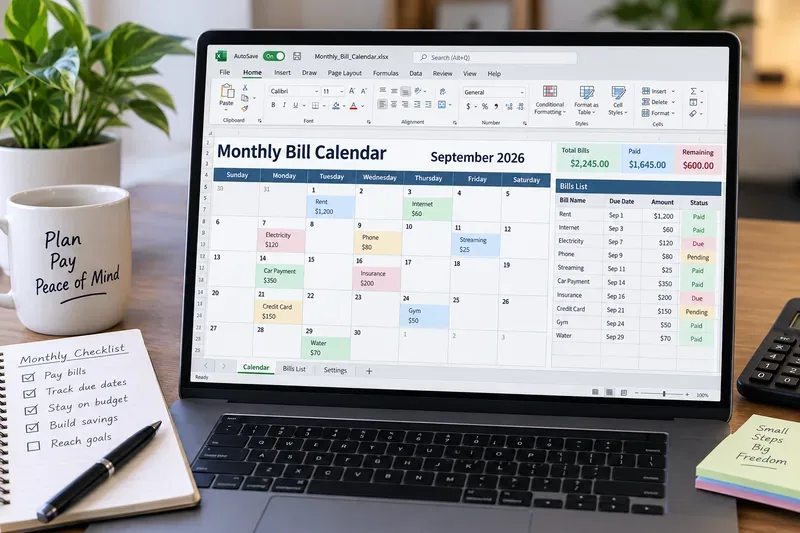
AI-generated illustration of a monthly bill calendar in an Excel-style workbook; it is not an actual Microsoft Excel screenshot.
What should a free monthly bill calendar template include?
For most households, three worksheets are enough: Bills, Calendar, and Settings. A fourth Summary sheet is useful if you want monthly totals by category or payment status.
Worksheet
Purpose
Keep it simple by
Bills
Stores the master list of bills and payment details
Using one row per bill occurrence
Calendar
Shows bills by due date in a monthly layout
Displaying key information only: name, amount, status
Settings
Holds category, status, frequency, and payment-method lists
Using short controlled lists instead of free-text variants
Summary
Totals bills, paid amounts, and upcoming obligations
Including only metrics you actually use
Useful action: if you are starting from a blank workbook, build the Bills sheet first. The calendar should be a view of your data, not the only place where the data exists.
Common misunderstanding: the calendar grid should be the master record
It is tempting to type “Rent $1,500” directly into the cell for the first of the month and repeat that for every bill. That looks intuitive, but it becomes difficult to sort bills, calculate totals, track payment status, or carry recurring items into a new month.
Microsoft recommends organizing related worksheet data in consistent columns and supports converting ranges into Excel tables, which makes filtering and analysis easier. Excel tables also expand as you add rows. See Microsoft Support: Create and format tables.
A more reliable Bills table uses columns such as:
Bill Name
Category
Due Date
Amount
Frequency
Payment Method
Autopay
Scheduled Payment Date
Paid
Paid Date
Status
Notes
Useful action: make the Bills table your source of truth, then use the Calendar sheet only to display the current month.
Common misunderstanding: a bill calendar is the same thing as a budget
Verified: the CFPB treats a bill calendar and spending tracker as separate tools. Its bill-calendar guidance focuses on due dates, amounts, and payment timing, while budgeting requires a broader view of income and spending. The CFPB specifically notes that timing mismatches between income and expenses can cause problems even when the monthly totals look manageable. See the CFPB bill-calendar guidance and the current Your Money, Your Goals toolkit.
What depends on your situation: some people need only a due-date organizer because their income is predictable. Others need weekly cash-flow planning because paychecks and large bills fall on different dates.
Useful action: if timing is your problem, add expected paycheck dates and amounts to a separate cash-flow section. Do not force the bill calendar itself to become a complete household budget.
The most useful fields are not always the most obvious ones
Due Date
This is the date the bill must be paid according to the provider. It belongs in every template.
Scheduled Payment Date
This is the date you plan to send the payment or the date an automatic withdrawal is expected. The CFPB's bill-calendar materials distinguish the bill's due date from the date money may need to be sent or taken from the account. Exact processing time depends on the payment method and provider, so a universal “pay two days early” formula is not safe for every bill.
Useful action: record both dates when timing matters. Check the provider's actual payment-processing rules instead of assuming all online payments settle instantly.
Amount
For fixed bills, enter the known amount. For variable bills such as electricity or a credit-card statement, use the actual statement amount once available rather than a permanent estimate.
Useful action: if you want forecasting, add a separate Estimated Amount field so you can preserve the real statement amount when it arrives.
Autopay
Use a Yes/No field rather than relying on memory. Autopay reduces manual payment work, but it does not guarantee that enough money will be available in the account. The CFPB warns that automatic payments can contribute to overdraft problems when cash is tight. See CFPB guidance on managing bills and automatic payments.
Useful action: for autopay bills, track the expected withdrawal date and the account used. Review that account before large automatic withdrawals.
Use drop-down lists for fields that should stay consistent
Categories and statuses become messy when one month says “Utilities,” another says “Utility,” and another says “Electric.” Excel's Data Validation feature can restrict cells to a list and provide an in-cell drop-down. Microsoft documents support for list-based validation in current Excel versions, including Excel for the web for common scenarios. See Microsoft Support: Apply data validation to cells.
A practical Settings sheet might contain:
Field
Example values
Status
Upcoming, Due Soon, Paid, Overdue
Category
Housing, Utilities, Insurance, Transportation, Debt, Subscriptions, Other
Frequency
Monthly, Quarterly, Semiannual, Annual, One-Time
Autopay
Yes, No
Useful action: put these lists on the Settings sheet and use Data Validation for the Bills table instead of typing labels manually.
Common misunderstanding: color-coding automatically makes the tracker accurate
Color is useful only when it reflects reliable data. Manually filling a bill cell green after payment can work, but it is easy to forget. A formula-driven Status field gives conditional formatting something consistent to evaluate.
For example, if your Excel table is named Bills and includes columns named Paid and Due Date, a status formula could follow this logic:
What depends on your situation: “Due Soon” might mean three days for one household and ten days for another. The seven-day threshold above is an example, not a financial rule.
Useful action: choose a warning window that matches how often you review the workbook, then test it with sample past, current, and future dates.
What formulas are worth adding?
You do not need dozens of formulas. A few reliable calculations are usually enough.
Monthly bill total
If cell B1 contains the first day of the month being displayed, and the master table is named Bills, a monthly total can use SUMIFS with EOMONTH:
Useful action: test monthly formulas with a bill on the first day and another on the final day of the month so you know both boundaries are included.
Paid and unpaid totals
SUMIFS can also total bills by payment status. Keep the original Amount unchanged and calculate status-based totals separately.
Useful action: show three numbers at the top of the Calendar or Summary sheet: Total Bills, Paid, and Remaining. That is usually more actionable than a large dashboard full of charts.
Be careful with bills due on the 29th, 30th, or 31st
A recurring rule such as “due on the 31st every month” does not map cleanly to months that end earlier. If a provider defines a bill as due on the last day of each month, Excel's EOMONTH function is designed to return the last calendar day of the target month. If the provider uses a different business rule, follow the provider's statement or terms rather than assuming EOMONTH matches it.
Useful action: store the actual due date from the bill whenever possible. Use EOMONTH only for obligations that are genuinely defined as month-end.
Do not overwrite calendar date formulas in a reusable template
Microsoft's current guidance for Excel calendar templates notes that template date cells may contain formulas that allow the calendar to update automatically. Manually replacing those formula cells can stop the calendar from updating correctly. See Microsoft Support: Create a calendar by using a template.
This is one reason a bill organizer is more robust when bills live in a separate table instead of being typed over calendar-date cells.
Useful action: before editing a downloaded calendar layout, click a few date cells and check the formula bar. If dates are formula-driven, preserve those formulas and put bill data in separate cells, notes, or a linked table.
Common misunderstanding: Excel will notify you in the background
Verified: Excel can calculate dates and visually highlight cells using functions such as TODAY and conditional formatting. Those features are excellent for showing bills that are due when you open or recalculate the workbook.
What is not established by a normal workbook alone: a standard Excel bill calendar should not be treated as a guaranteed background push-notification system. Notifications require a separate reminder mechanism or automation setup.
Useful action: if missing a bill would be costly, put the payment deadline in your phone, Outlook, or another reminder system as well. Use Excel for organization and review, not as your only alert channel.
Should you start from an Excel calendar template or build your own?
Microsoft currently provides calendar templates for Excel, including layouts with one or more months, notes, task trackers, and other planning features. See Microsoft Support: Excel calendar templates.
Option
Best when
Tradeoff
Use an existing calendar template
You mainly want a visual monthly layout
You may need to add bill-specific fields and protect existing date formulas
Build a bill table first
You care about totals, filtering, payment status, and history
The initial setup takes a little longer
Use both
You want a clean calendar plus a reliable transaction list
You must maintain the relationship between the two views
Useful action: for a reusable organizer, use both: one structured Bills table for accuracy and one Calendar sheet for visibility.
Protect your privacy when storing bill information
A bill organizer does not need your online-banking password, card PIN, or full account number. The CFPB's bill-calendar material cautions users about sensitive information and recommends care when personal data may be shared with others. See the CFPB bill calendar worksheet.
Useful action: identify accounts with a harmless label such as “Main Checking” or, if necessary, a limited identifier you are comfortable storing. Keep credentials out of the workbook.
A practical monthly bill calendar layout
For a typical household, the Calendar sheet can stay visually simple:
Month and year selector at the top
Sunday-to-Saturday or Monday-to-Sunday calendar grid
Bill name and amount inside each relevant date
Status color for Paid, Due Soon, and Overdue
Total Bills, Paid, and Remaining summary
A short list of upcoming bills
The Bills sheet holds the details. The Calendar sheet answers the fast question: what is coming up next?
Useful action: avoid squeezing account numbers, long notes, categories, and payment instructions into calendar cells. Keep the calendar readable and store detail in the source table.
Free monthly bill calendar template checklist
One structured master Bills table
Actual due date for every bill
Separate scheduled-payment date where useful
Amount and optional estimated amount
Autopay Yes/No field
Paid status and paid date
Consistent categories using drop-down lists
Formula-driven status instead of manual color alone
Monthly totals that include the full month boundaries
No passwords, PINs, or unnecessary sensitive account data
A separate reminder system for bills you cannot afford to miss
Which version should you use?
If your bill life is simple, use a one-month calendar with a Bills table and three summary totals. If you have variable income, add paycheck dates or a separate cash-flow view. If you manage bills for multiple properties or family members, add an Owner or Household field rather than creating many unrelated workbooks. If you need bank reconciliation, transaction importing, or complex debt planning, a bill calendar may no longer be the right primary tool.
The main principle is durable: keep the data structured, keep the calendar visual, and keep the distinction between a due date and actual cash movement clear. That gives you a free Excel bill organizer that remains useful after the first month instead of becoming another spreadsheet you stop opening.