Home
» Tips
»
Free Employee Shift Schedule Template in Excel with Hours Calculator
Free Employee Shift Schedule Template in Excel with Hours Calculator
A good Excel shift schedule should do more than display who works when. It should calculate scheduled hours consistently, make overnight shifts and unpaid-break assumptions visible, show managers where coverage is thin, and remain simple enough that someone can update it without breaking the formulas. If the workbook gives you a clean weekly plan but cannot explain how it reached the hour totals, it is not yet reliable enough to use as an operating template.
This free structure is designed for small businesses that want a practical schedule before moving to dedicated workforce-management software. It uses current Excel features documented by Microsoft, including Excel Tables, structured references, Data Validation, conditional formatting, time arithmetic, print areas, and PDF-friendly output. It also makes an important legal distinction: scheduled hours are not automatically the same as hours actually worked for payroll or overtime purposes.
Under the federal Fair Labor Standards Act (FLSA), covered nonexempt employees generally receive overtime after 40 hours worked in a workweek, but exemptions and state rules can change the calculation. The U.S. Department of Labor also distinguishes paid short rest periods from bona fide meal periods and requires accurate records of actual hours worked for covered nonexempt employees. Treat the workbook’s overtime column as a planning alert unless you have configured it to match the rules that apply to your employees.
What a useful result should look like
Before building formulas, define the outcome. A workable weekly schedule should let a manager answer these questions quickly:
Who is scheduled on each day and at what times?
How many net scheduled hours does each shift contain?
Does an overnight shift calculate correctly?
Which break deductions are being subtracted, and why?
How many scheduled hours does each employee have for the workweek?
Which employees cross the planning threshold you use for overtime review?
Does each critical role have enough coverage?
Can the schedule be printed or saved as a PDF without tiny unreadable text?
If the workbook answers those questions consistently, it is doing useful work. If managers still need a calculator, handwritten notes, or another spreadsheet to verify the schedule, simplify the design before adding more features.
Recommended workbook design: separate calculation data from the printable view
The cleanest small-business setup uses three worksheets:
Worksheet
Purpose
Why it helps
Shifts
One row per employee shift with date, start, end, break, and net hours
Keeps calculations auditable and easy to filter
Schedule
Weekly employee-by-day view for managers and staff
Easy to read and print
Settings
Employee list, role list, shift labels, workweek start, planning threshold
Keeps reusable values out of formulas
This is slightly more structured than typing “9 AM–5 PM” into seven cells across a row, but the tradeoff is worthwhile. A pretty weekly grid is easy to read; a normalized shift table is easier to calculate. Keeping both views lets Excel do the arithmetic while people get the schedule format they expect.
Step 1: Build the Shifts table and enter real Excel times
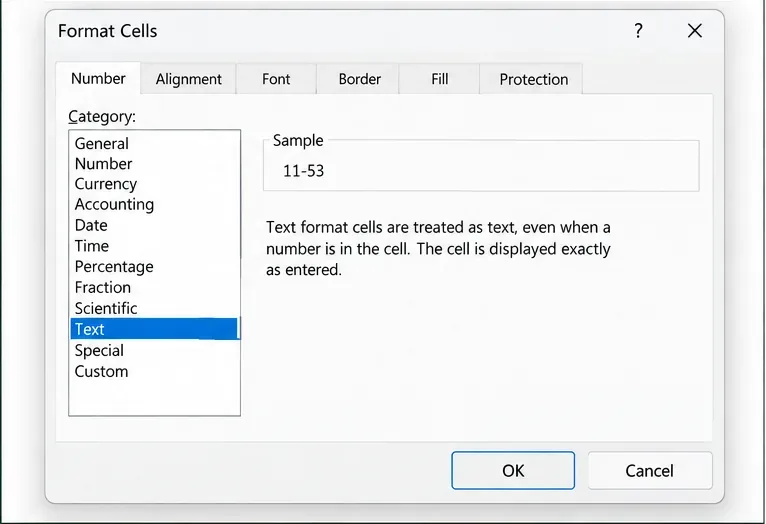
Name the table Shifts. Enter Start and End as genuine Excel time values rather than text. For example, type 9:00 AM, not 9am-5pm in a single cell. Microsoft’s time-difference documentation explains that Excel can subtract time values and convert the result into hours.
Quality check: click a Start or End cell and change its number format. If Excel recognizes it as a time, the value can be calculated. If it remains plain text, fix the data entry format before trusting any totals.
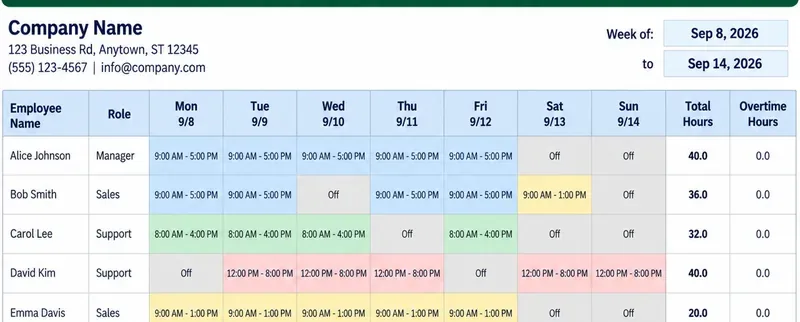
AI-generated illustration of a weekly shift schedule. Employee names, dates, hours, and totals are fictional examples and are not payroll records.
Step 2: Calculate net hours, including overnight shifts and unpaid breaks
For a same-day shift, the basic idea is End - Start. Because Excel stores times as fractions of a day, multiply the time difference by 24 to get decimal hours.
A more useful formula handles a shift that crosses midnight:
The MOD function returns a remainder. In this formula, MOD(End-Start,1) wraps a negative time difference into the next 24-hour day. Microsoft documents the MOD(number, divisor) function in its official MOD reference.
Example:
Start: 10:00 PM
End:   6:00 AM
Unpaid Break: 0.5 hours

24 * MOD(6:00 AM - 10:00 PM, 1) = 8.0
Net scheduled hours = 8.0 - 0.5 = 7.5
Do not subtract every break automatically. Under federal guidance, short rest periods of about 20 minutes or less are generally counted as hours worked, while bona fide meal periods—typically at least 30 minutes when the employee is relieved of duties—generally do not have to be counted as work time. State law can impose different or additional requirements. See the U.S. Department of Labor’s Fact Sheet #22 on hours worked.
For scheduling purposes, the safest spreadsheet design is to label the field Unpaid Break (hrs), not merely Break. The manager should enter a deduction only when the break is actually intended to be unpaid under the rules and policies that apply.
Quality check: test at least four shifts: a normal daytime shift, a short shift, an overnight shift, and a shift with an unpaid meal deduction. Manually calculate those four once and confirm Excel matches.
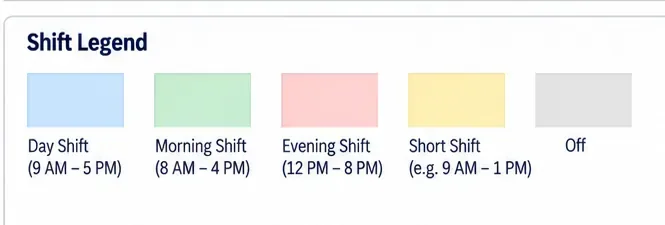
AI-generated shift legend illustrating how a schedule can distinguish common shift types. The colors and time ranges are examples, not required Excel settings.
Step 3: Calculate weekly totals and use overtime only as a planning flag
Once every shift has a reliable Net Hours value, weekly totals become straightforward. If your summary lists an employee name in cell A2, you can total that employee’s scheduled hours for a date range with SUMIFS:
where B1 is the workweek start date and C1 is the end date.
For a simple planning alert, you can store a threshold—such as 40—in a clearly labeled Settings cell and calculate:
=MAX(0,[@[Total Hours]]-OT_Threshold)
If the employee has 44 scheduled hours and the threshold is 40, the planning flag shows 4 hours above the threshold.
This is not automatically the payroll overtime calculation. The federal FLSA generally requires overtime for covered nonexempt employees after 40 hours worked in a fixed 168-hour workweek, but there are exemptions and other lawful pay methods, and state law may provide additional rules. The Department of Labor’s Fact Sheet #23 explains the federal workweek-based rule.
Also remember the difference between scheduled and worked. DOL recordkeeping guidance requires covered employers to keep accurate information about hours actually worked, and it specifically notes that when employees deviate from a fixed schedule, the actual hours must be recorded. See Fact Sheet #21 on recordkeeping.
Quality check: compare weekly scheduled totals with your actual timekeeping or payroll source after the week closes. If they regularly differ, do not turn the schedule into a payroll system by assumption; keep scheduling and actual-time records separate.
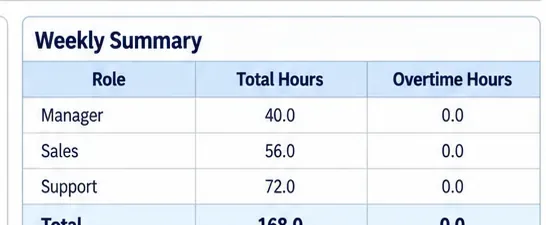
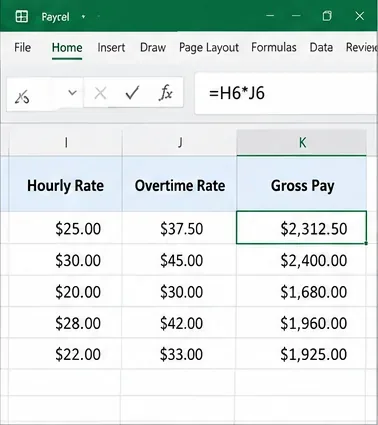
AI-generated weekly-hours summary. The totals are fictional examples; an overtime column in a schedule should be treated as a planning indicator unless it is configured to match applicable payroll rules.
Step 4: Add guardrails, coverage checks, and a printable staff view
Use Data Validation for employees and roles
Create employee and role lists on the Settings sheet, then use Data → Data Validation → List in the Shifts table. Microsoft documents that Data Validation can restrict input to approved values and create drop-down lists. See Microsoft’s Data Validation guide.
This prevents errors such as “Front Desk,” “Front desk,” and “Desk” becoming three different roles in a coverage summary.
Use conditional formatting for problems that need attention
Useful rules include:
highlight Net Hours below 0 or above a business-defined maximum;
highlight employees whose weekly scheduled hours exceed the planning threshold;
highlight dates where a required role has zero scheduled coverage;
highlight missing End times on otherwise active shift rows.
The printable Schedule sheet should show less detail than the calculation table. A simple view can include:
employee name;
role;
Monday through Sunday shift time;
weekly scheduled total;
approved notes such as “Off,” “Training,” or “PTO.”
Do not print internal payroll rates, disciplinary notes, or other information employees do not need to see.
Select only the schedule area and use Page Layout → Print Area → Set Print Area. Microsoft’s Print Area documentation explains that Excel saves the selected print range with the workbook.
Quality check: open Print Preview and confirm employee names, every day of the week, shift times, and totals are readable without a magnifying glass. If Excel shrinks the sheet too far, print landscape, shorten unnecessary columns, or split the output across pages rather than forcing everything onto one page.
AI-generated illustration of setup instructions and a configurable weekly overtime planning threshold. The 40-hour example reflects a common federal planning reference for covered nonexempt employees, but payroll rules must be verified for the actual workforce and jurisdiction.
How to judge whether the template is working well
After using the workbook for two or three scheduling cycles, review the result rather than the appearance. A successful schedule has observable signs:
Good sign
What it tells you
Managers rarely recalculate hours manually
The formulas are understandable and dependable
Overnight shifts calculate correctly
Time arithmetic is handling midnight transitions
Coverage gaps are visible before the schedule is published
The schedule supports staffing decisions, not just record storage
Employees receive one clear current version
Version control is manageable
Actual-time records can be reconciled with the schedule
Scheduling and payroll records are being kept conceptually separate
Printing does not require manual reformatting every week
The template is reusable
When Excel starts to become the wrong tool
Excel works well when one manager or a small group maintains a predictable weekly schedule. It becomes less attractive when the hard part is no longer arithmetic but coordination.
Consider a dedicated scheduling or workforce-management system when several of these conditions appear:
employees need to submit availability or swap shifts themselves;
multiple managers edit the schedule simultaneously;
you need automatic text, app, or email notifications for schedule changes;
you schedule many locations or departments;
labor rules differ by employee classification or jurisdiction;
you need time-clock data connected directly to payroll;
shift changes are frequent enough that printed copies become stale immediately;
you need approval history, audit trails, or role-based permissions.
There is no universal employee count at which Excel becomes “too small.” A 30-person operation with stable weekly shifts may manage comfortably in a workbook, while an eight-person restaurant with constant swaps and variable availability may benefit from scheduling software much earlier.
Common mistakes that reduce schedule quality
Typing shift ranges as plain text
9-5 is easy to read but difficult to calculate reliably. Keep Start and End in separate time cells in the calculation table.
Subtracting a meal break automatically from every shift
Break treatment depends on whether the time is compensable. Use an explicit unpaid-break field and apply the rules that govern your workforce.
Assuming a 40-hour formula proves overtime pay
A schedule can flag planned hours above 40, but legal overtime calculations depend on actual hours worked, employee coverage/exemption status, regular-rate rules, and potentially state requirements.
Using the calendar week when the business workweek is different
Federal overtime rules use a fixed, regularly recurring seven-day workweek that does not have to run Monday through Sunday. Store your actual workweek start date in Settings rather than assuming the calendar layout controls payroll.
Publishing a schedule without checking coverage
Total hours can look reasonable while a critical role is uncovered for two hours. Review by role and time window, not only by employee total.
Final self-check before publishing the weekly schedule
Do Start and End cells contain real Excel time values?
Do overnight shifts produce the expected hours?
Are unpaid-break deductions intentional and legally/policy appropriate?
Does each employee’s weekly total match the sum of their shift rows?
Is the workweek date range correct?
Are overtime values labeled as planning indicators unless they are part of a verified payroll calculation?
Does every essential role have coverage?
Are there conflicting or overlapping shifts for the same employee?
Can employees read the printed or PDF schedule easily?
Is there one clearly identified current version?
Bottom line
A free Excel employee shift schedule can be a strong small-business tool when it calculates hours transparently and helps managers catch coverage problems before publishing. The most dependable design separates detailed shift data from the printable weekly view, uses real time values, handles midnight with a tested formula, and treats break and overtime logic as configurable business/legal inputs rather than universal rules.
Use Excel while the workbook stays current, understandable, and easy to reconcile with actual time records. When shift swaps, alerts, multiple locations, payroll integration, permissions, or rule complexity become the larger problem, switching tools is usually more valuable than adding another layer of formulas.