Home
» Tips
»
Excel Formula Not Calculating Automatically? Fix It in 3 Easy Steps
Excel Formula Not Calculating Automatically? Fix It in 3 Easy Steps
If Excel formulas are not updating when you change the numbers they depend on, check the calculation mode first. In most cases where many formulas are stuck at old values, the fastest fix is Formulas > Calculation Options > Automatic. Microsoft identifies Automatic as Excel's default calculation setting; Manual calculation tells Excel to wait until you explicitly recalculate.
That quick fix is appropriate when a workbook was previously calculating normally and now several totals, percentages, lookups, or other dependent formulas stay unchanged after you edit source cells. If only one formula is misbehaving, or the cell literally displays something such as =B2*C2 instead of a result, skip ahead to Step 3 because the problem may be the cell itself rather than the workbook calculation mode.
Why Does Excel Stop Calculating Formulas Automatically?
Excel has multiple calculation modes. In Automatic mode, dependent formulas recalculate when relevant values, formulas, or names change. In Manual mode, Excel waits for a manual calculation command. Microsoft also provides a mode that excludes data tables from normal automatic recalculation, which can matter in workbooks that use What-If Analysis data tables.
On Excel desktop for Windows, Microsoft notes that changing calculation options affects all open workbooks. In Excel for the web, the calculation option applies to the current workbook instead. This difference matters when a workbook seems to inherit unexpected behavior during a desktop session.
There is another class of problem that looks similar but is not a calculation-mode issue. A formula may be stored as text, the worksheet may have Show Formulas turned on, a formula may have been overwritten with a fixed value, or the formula may contain an error. The three-step process below separates those cases instead of treating every symptom as the same problem.
Step 1: Set Workbook Calculation to Automatic
Start here if several formulas fail to update after you change their input cells.
Select the Formulas tab.
Choose Calculation Options.
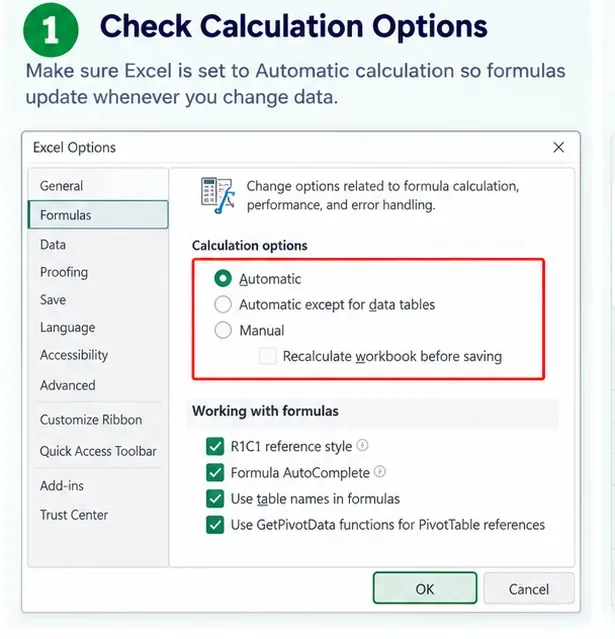
Select Automatic.
You can also reach the setting in Excel for Windows through File > Options > Formulas, then look under Calculation options and Workbook Calculation. Microsoft's current documentation describes Automatic as the setting that recalculates dependent formulas whenever a relevant value, formula, or name changes.
AI-generated illustration: Excel's calculation settings with Automatic selected. The image is illustrative, not a captured Microsoft screenshot.
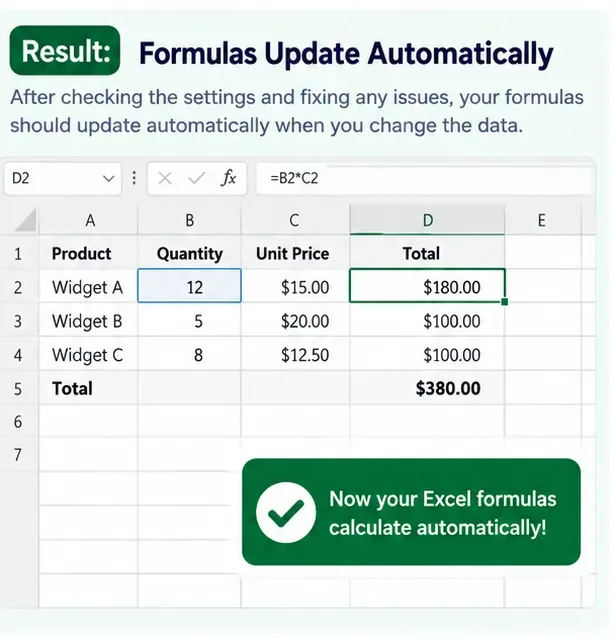
Example: suppose cell D2 contains =B2*C2. B2 is the quantity and C2 is the unit price. If B2 changes from 10 to 12, D2 should update without requiring another action when Automatic calculation is working normally.
When this step is likely to solve the problem: many formula results are stale, pressing F9 updates them, or a workbook that used to calculate immediately now waits for manual intervention.
When it may not be enough: only one cell is affected, the formula itself is visible as text, the cell shows an Excel error such as #VALUE! or #REF!, or the result depends on an external workbook or data connection that has not refreshed.
Step 2: Force a Recalculation and See What Changes
After switching to Automatic, force one clean recalculation. This is useful because a workbook may contain values that were calculated while Manual mode was active.
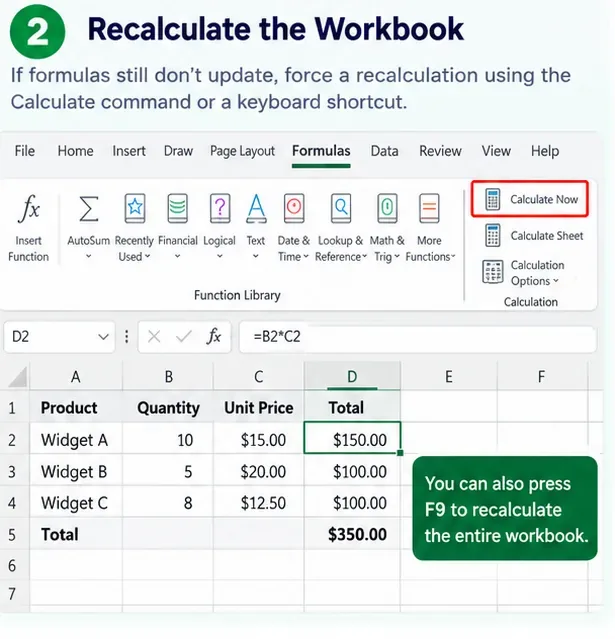
On the Formulas tab, select Calculate Now. Microsoft also documents these useful keyboard options:
F9 recalculates formulas that have changed since the previous calculation, plus formulas that depend on them, across open workbooks.
Shift+F9 recalculates changed formulas and dependents in the active worksheet.
Ctrl+Alt+F9 recalculates all formulas in all open workbooks, whether Excel thinks they changed or not.
Ctrl+Shift+Alt+F9 rechecks dependencies and then recalculates all formulas in all open workbooks.
AI-generated illustration: using Calculate Now or F9 after restoring Automatic calculation. The interface is illustrative rather than a real test screenshot.
For a normal workbook, start with Calculate Now or F9. Use Ctrl+Alt+F9 when ordinary recalculation does not refresh a workbook that should be fully formula-driven. The dependency-rebuild shortcut is more of a troubleshooting tool than a routine command.
Now perform a simple test. Change one obvious input used by a formula. For example, if =B2*C2 currently returns $150 from a quantity of 10 and a unit price of $15, change B2 to 12. In Automatic mode the result should become $180 immediately.
If that happens, the calculation engine is working again. If F9 changes the result but a later edit does not, recheck Step 1 because the workbook or desktop session may still be in a nonautomatic mode. If nothing changes at all, move to Step 3.
Step 3: Fix the Formula Cell if the Problem Is Local
If most formulas work but one or a few do not, inspect those cells directly. Microsoft lists two especially common causes when a formula shows its syntax instead of a calculated value: Show Formulas may be enabled, or the cell may be formatted as Text.
If Excel shows the formula instead of the result
First open the Formulas tab and check Show Formulas. If it is on, turn it off. The keyboard shortcut Ctrl+` toggles that view.
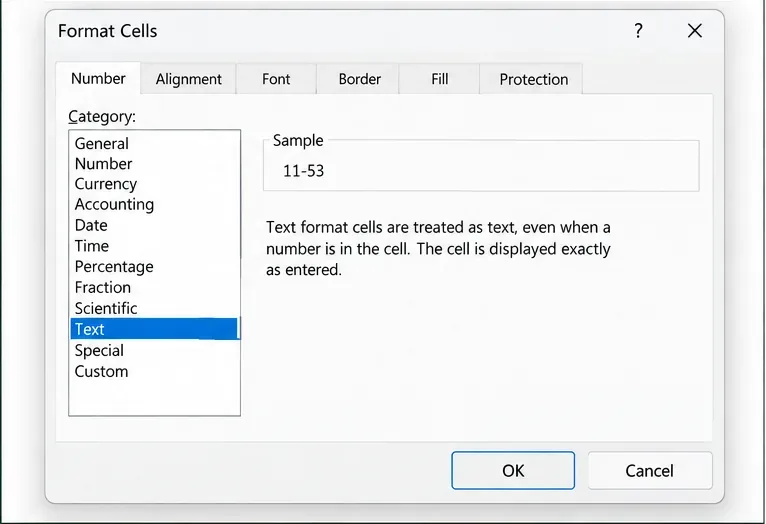
If the formula still appears as text, select the affected cell and change its number format from Text to General. Microsoft then recommends pressing F2 followed by Enter so Excel re-enters the content as a formula. Simply changing the displayed number format may not convert an already-entered text formula by itself.
If the cell contains an error or a fixed value
Click the cell and inspect the formula bar. Confirm the content actually begins with = and still contains the intended formula. A formula can be accidentally replaced by a pasted value, which means there is nothing left for Excel to recalculate.
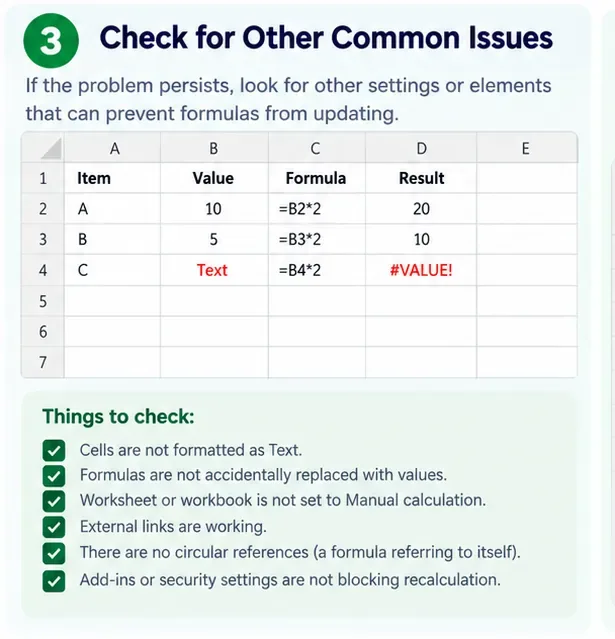
If the cell shows an error such as #VALUE!, #REF!, or #NAME?, automatic calculation is probably functioning; the formula or its inputs need repair. A text value where a number is expected, a deleted reference, or a misspelled function can all produce errors even when calculation mode is correct.
AI-generated illustration: checking an individual formula cell after workbook-wide calculation settings have been ruled out.
Do not stop after seeing the current result change once. Verify automatic behavior with a controlled edit:
Pick a simple formula whose inputs are easy to identify.
Write down the current result.
Change one input value.
Confirm the formula result changes immediately without pressing F9 or Calculate Now.
Undo the test value if necessary and confirm the formula changes back.
AI-generated illustration: a simple verification test where changing an input immediately updates the dependent formula.
If the formula updates immediately, the original “Excel formula not calculating automatically” problem is resolved for that workbook path. In newer Microsoft 365 builds, Microsoft may also mark a formula result as stale when underlying data has changed but recalculation has not yet occurred, especially in Manual or Partial calculation modes. A stale indicator is a clue that the displayed value should not yet be treated as current. See Microsoft Support: stale value formatting for the current behavior.
What If Automatic Calculation Is On but the Workbook Is Still Wrong?
At that point, the problem may not be automatic calculation itself. Check the conditions around the formula.
External workbook links: a formula can calculate correctly while still using an old value from a source workbook that has not refreshed.
What-If Analysis data tables: if the workbook uses the option that excludes data tables from automatic recalculation, ordinary formulas and data tables can behave differently.
Circular references: a formula that ultimately refers back to itself is a different calculation problem. Do not enable iterative calculation merely to make the warning disappear unless the model intentionally requires iteration and you understand the convergence settings.
Formula errors: an error result indicates Excel did calculate something; fix the formula or its inputs rather than repeatedly forcing recalculation.
Values pasted over formulas: automatic mode cannot restore a formula that was replaced with a constant. Recover it from a neighboring cell, version history, backup, or the workbook's original logic.
Data connections and queries: refreshing external data is separate from recalculating worksheet formulas. A formula can be fully recalculated against data that is itself outdated.
Quick Decision Guide
Symptom
Most useful first action
Many formulas stay at old values
Set Calculation Options to Automatic
F9 updates the numbers
Recheck calculation mode; Manual mode is a strong clue
One cell displays =SUM(...) or another formula literally
Turn off Show Formulas and check whether the cell is formatted as Text
One cell shows #VALUE!, #REF!, or #NAME?
Repair the formula or its inputs
Worksheet formulas update but linked data remains old
Check the external link or data refresh process
Only What-If data tables seem stale
Check whether calculation is set to exclude data tables
The Three-Step Fix in One Minute
For the common case, the solution is straightforward: 1) set Formulas > Calculation Options > Automatic; 2) run Calculate Now or press F9 once; 3) if individual cells still fail, check Show Formulas, Text formatting, and the formula itself.
The important distinction is scope. A workbook-wide failure points first to calculation mode. A single-cell failure points first to the formula or cell formatting. Using that distinction prevents unnecessary troubleshooting and makes it easier to tell whether Excel's calculation engine is actually the problem.